
Building Decks
MTG Rack includes a full-featured deck editor with visual card management, automatic type categorization, mana curve analysis, and a built-in playtest engine so you can goldfish your deck right in the browser. Whether you are tuning a competitive Standard list or brewing a casual Commander deck, the editor gives you the tools to build, analyze, and test without leaving the app.
Creating a New Deck
Navigate to the Decks tab in the sidebar and click New Deck. You will be prompted to enter a deck name, select a game (Magic: The Gathering or Pokemon), and choose a format. For MTG, supported formats include Standard, Modern, Pioneer, Legacy, Vintage, Pauper, Commander, and Casual. For Commander decks, you can also designate a commander and optional companion or partner at this stage. Decks are private by default — you can publish them later with a public link or to the Explore feed.
The Deck Editor
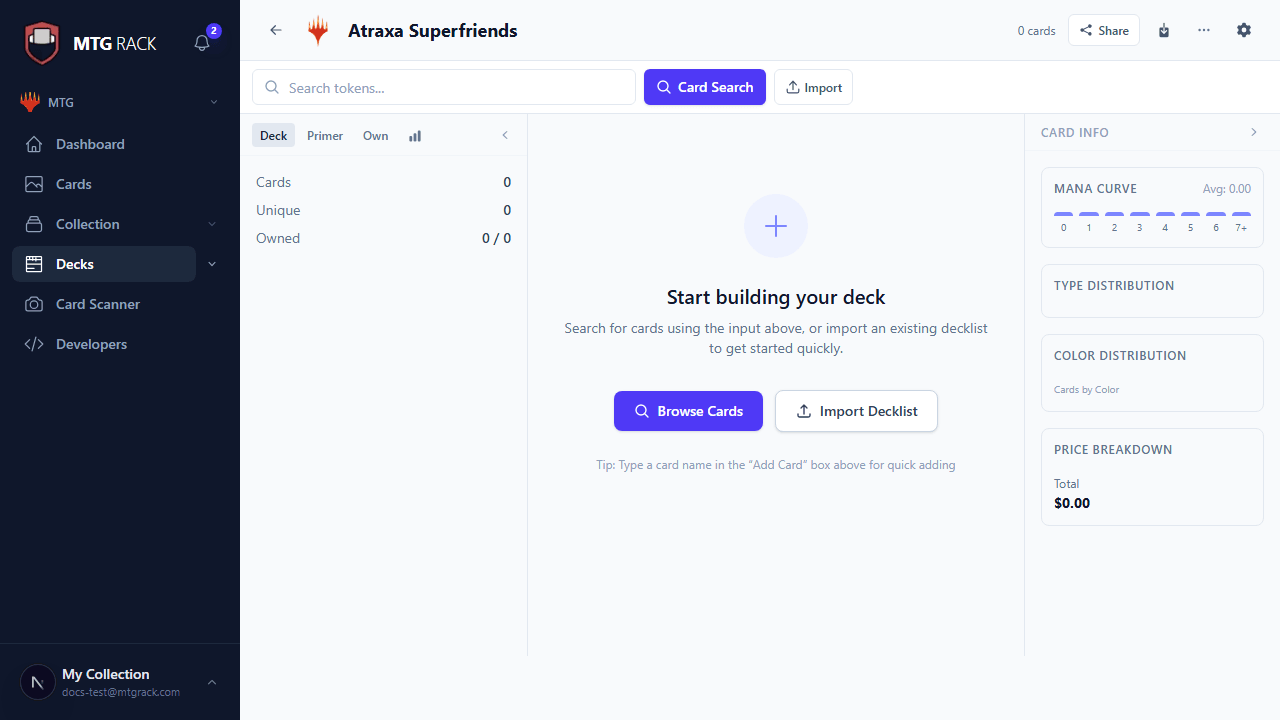
The deck editor uses a two-panel workspace. The left panel shows your decklist organized into sections (Creatures, Instants, Sorceries, Artifacts, Enchantments, Planeswalkers, Lands), while the right panel displays a full-size card preview when you hover over any entry. This layout lets you scan your list quickly while always having the card image at hand for reference.
To add cards, use the search bar at the top of the editor. Type a card name and results appear instantly from the Scryfall database. Click a result to add one copy to your mainboard — the editor automatically places it in the correct type section. You can also paste an entire decklist in text format (e.g., "4 Lightning Bolt") and the editor will parse and add all cards at once. Drag-and-drop is supported for reordering cards within and between sections.
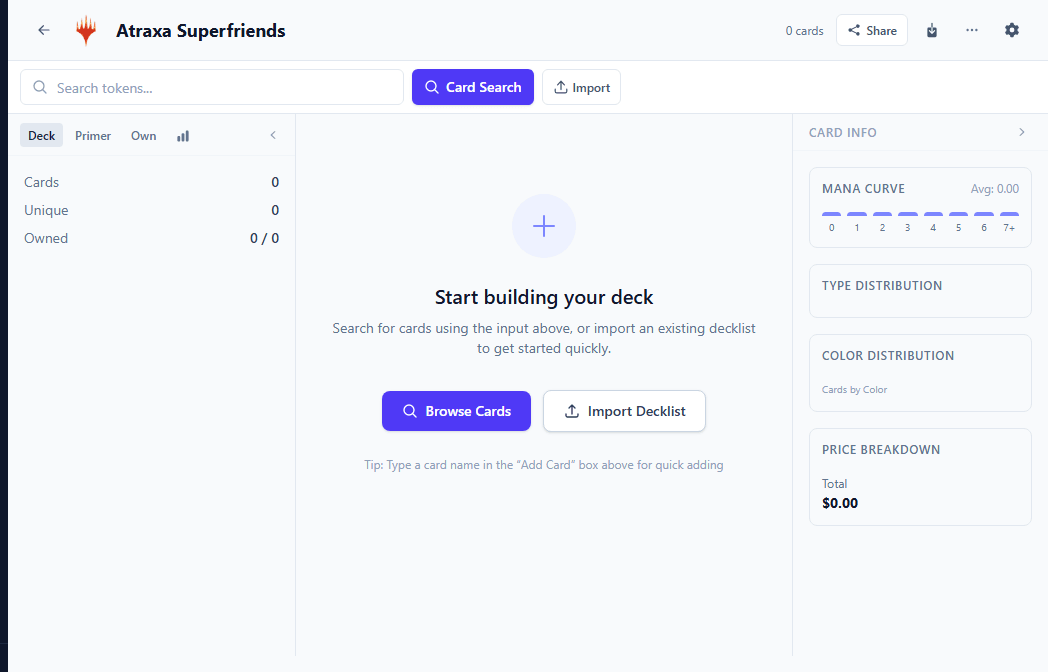
The editor auto-saves as you make changes. A full revision history is maintained so you can revert to any previous version of your deck at any time from the history panel. You will never lose work, even if you close the browser tab mid-edit.
Deck Sections
Every deck has a Mainboard and optional Sideboard, Maybeboard, and Command Zone. Within the mainboard, cards are automatically categorized by type. You can also create custom sections for your own organizational system — for example, grouping cards by role like "Ramp," "Removal," "Card Draw," or "Win Conditions." Right-click any card to move it between the mainboard, sideboard, maybeboard, or a custom section. Use the + and - buttons on each entry to adjust quantities.
Deck Stats and Analysis
The editor sidebar shows live statistics that update as you add or remove cards:
- Card count — total cards in mainboard, sideboard, and maybeboard, with format-specific warnings (e.g., exactly 60 for Standard, exactly 100 for Commander).
- Mana curve — a bar chart showing the distribution of cards across mana values, helping you ensure a smooth curve.
- Color distribution — a pie chart showing the color breakdown of your spells, useful for balancing your mana base.
- Average mana value — the mean CMC of non-land cards in your mainboard.
- Type breakdown — counts of creatures, instants, sorceries, artifacts, enchantments, planeswalkers, and lands.
Highlighter
The Highlighter tool lets you visually mark cards in your deck based on criteria like color, type, mana value, or custom tags. Click the highlighter icon in the toolbar to open the panel, select your criteria, and matching cards are instantly highlighted with a colored glow. This is invaluable for spotting gaps — for example, highlight all cards with CMC 3+ to see if your curve is too heavy, or highlight all removal spells to check you have enough interaction.
Format Legality
Playtesting
Click the Playtest button to launch the built-in playtest engine. You get a full virtual tabletop with zones for your hand, battlefield, graveyard, exile, library, and command zone. Draw cards, tap and untap permanents, track life totals, create tokens, and step through turns — all without leaving the app. The engine supports London mulligan rules for MTG and redraw mulligan rules for Pokemon.
Right-click any card during playtesting for context-menu actions including scry, surveil, cascade, mill, tutor (search library), and moving cards between any zones. Keyboard shortcuts are available for common actions: press D to draw, U to untap all, and N to advance to the next turn.
Multiplayer Playtesting
Sharing and Exporting
Share your deck in several ways:
- Public link — toggle the deck to public and share the URL. Anyone with the link can view your decklist, mana curve, and stats without needing an account.
- Publish to Explore — make your deck discoverable on the Explore feed where other users can find, like, and comment on it.
- Text export — copy your decklist as plain text in the standard "4 Lightning Bolt" format, ready to paste into any forum, Discord, or other tool.
- MTGO format — export in the format accepted by Magic: The Gathering Online for direct import.
- CSV/JSON — export full deck data including set codes, quantities, and sections for use in spreadsheets or scripts.
Deep Dive Guides
The deck system has many more features covered in dedicated guides:
Deck Editor
Two-panel editor with sections, drag-and-drop, highlighter, and multiple view modes
Stats & Analysis
Mana curve, color distribution, draw probability, and deck readiness
Playtesting
Virtual tabletop with zones, life tracking, and multiplayer sessions
Folders & Labels
Organize decks into nested folders, apply labels, and manage the trash
Collaboration
Real-time collaborative editing with presence indicators and version history
Sharing & Publishing
Public links, export formats, community publishing, and deck primers