
Account & Settings
Your account page and settings panel give you full control over your MTG Rack experience — from managing your subscription tier and collection profiles to fine-tuning how cards are displayed, syncing across devices, and exporting your data. This guide covers everything you can do from the /account and /settings pages.
Account Overview
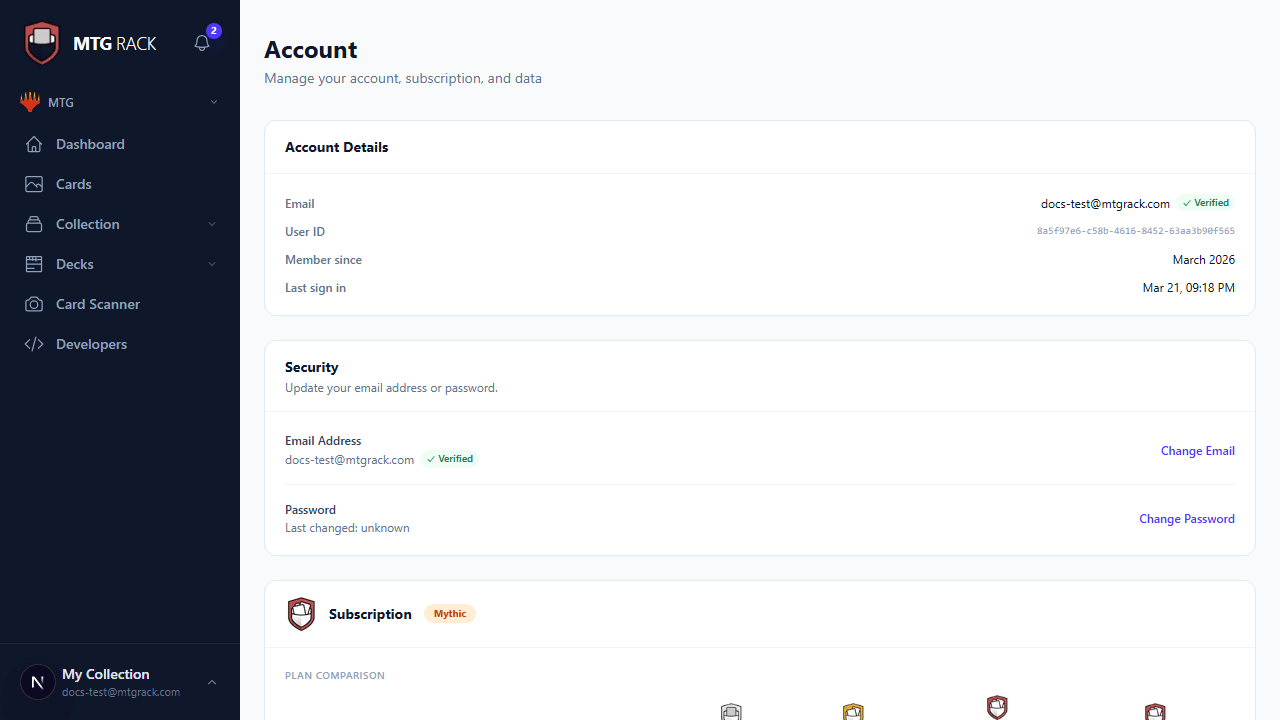
Navigate to /account from the sidebar or user menu to see a high-level snapshot of your MTG Rack account. The overview panel displays:
- Current tier — your active subscription plan (Free, Rare, Mythic, or Unlimited). A badge next to your username indicates the tier at a glance. See Billing & Plans for a full breakdown of what each tier includes.
- Collection statistics — total cards owned, unique printings, and the current estimated market value of your entire collection aggregated across all games.
- Email & verification status — the email address associated with your account and whether it has been verified. An unverified email limits certain features such as data export and referral rewards. You can resend the verification email from this section.
- Account creation date — when you first signed up for MTG Rack.
- Last sign-in date — the most recent time you authenticated, useful for security auditing.
Data Export
Your data belongs to you. From the account page you can export your entire collection — or a filtered subset — at any time. MTG Rack supports two export formats:
A structured export that preserves every field including metadata, binder assignments, acquisition prices, condition grades, tags, and deck associations. This is the best format for backups or migrating to another tool that accepts JSON.
A flat spreadsheet-compatible export with one row per collection entry. Opens directly in Excel, Google Sheets, or any spreadsheet app. Column headers follow the same format used by the Import & Export system, so a CSV export can be re-imported without modification.
Before exporting, you can choose the scope of the export: your full collection, a specific game, a single binder, or a filtered view. This is useful when you only need to share or back up a subset of your data — for example, exporting just your trade binder as a CSV to send to a friend.
Email Verification Required
Collection Profiles
MTG Rack supports multiple collection profiles under a single account. Profiles let you maintain completely separate collections — for example, one profile for your personal cards and another for a store inventory, or separate profiles for different household members sharing the same account.
Switch between profiles using the profile selector in the sidebar or on the account page. Each profile has its own collection, binders, decks, and analytics. Your settings and subscription tier are shared across all profiles — you do not need separate subscriptions.
Account Deletion
If you need to permanently delete your MTG Rack account, scroll to the bottom of the account page and click Delete Account. A confirmation dialog will appear requiring you to type your email address to proceed. Deletion is irreversible — it removes your account, all collection data, binders, decks, analytics history, backups, custom art, and profile information. Your subscription (if active) is canceled automatically and any remaining billing cycle is not refunded.
Export Before Deleting
Settings Page
The /settings page is organized into five tabs, each covering a different area of your MTG Rack configuration. Changes are saved automatically as you make them unless otherwise noted.
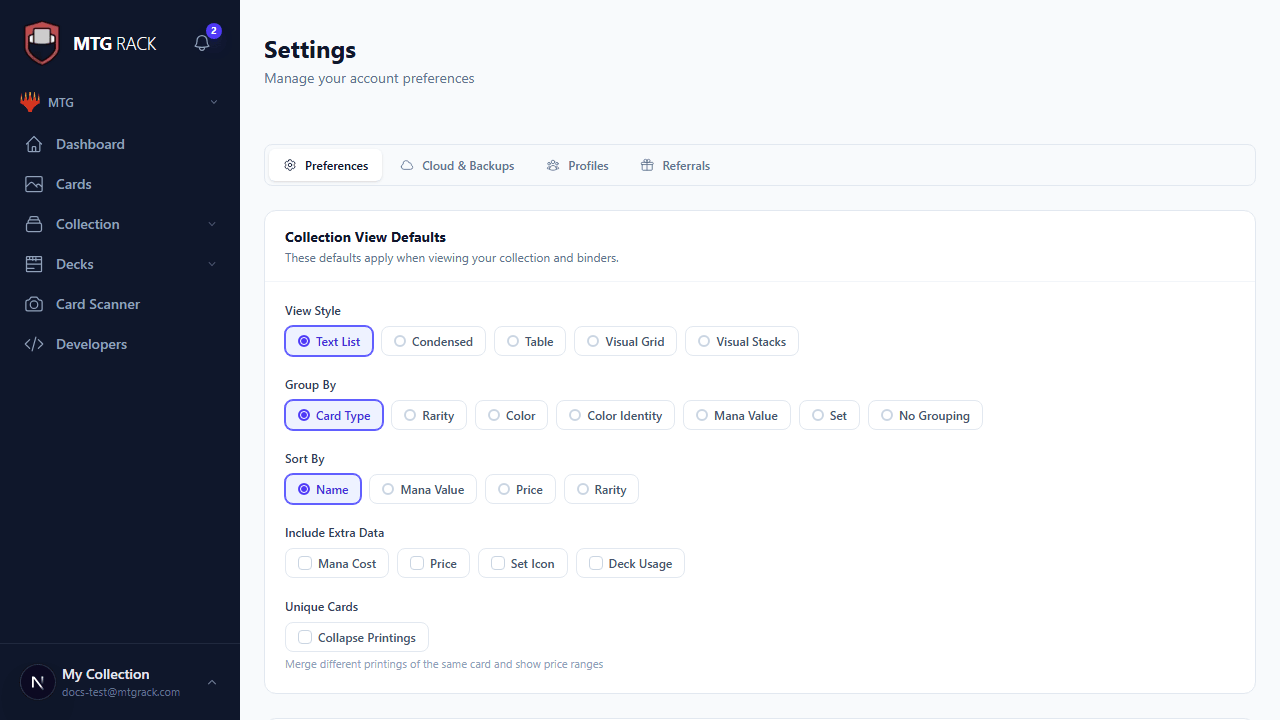
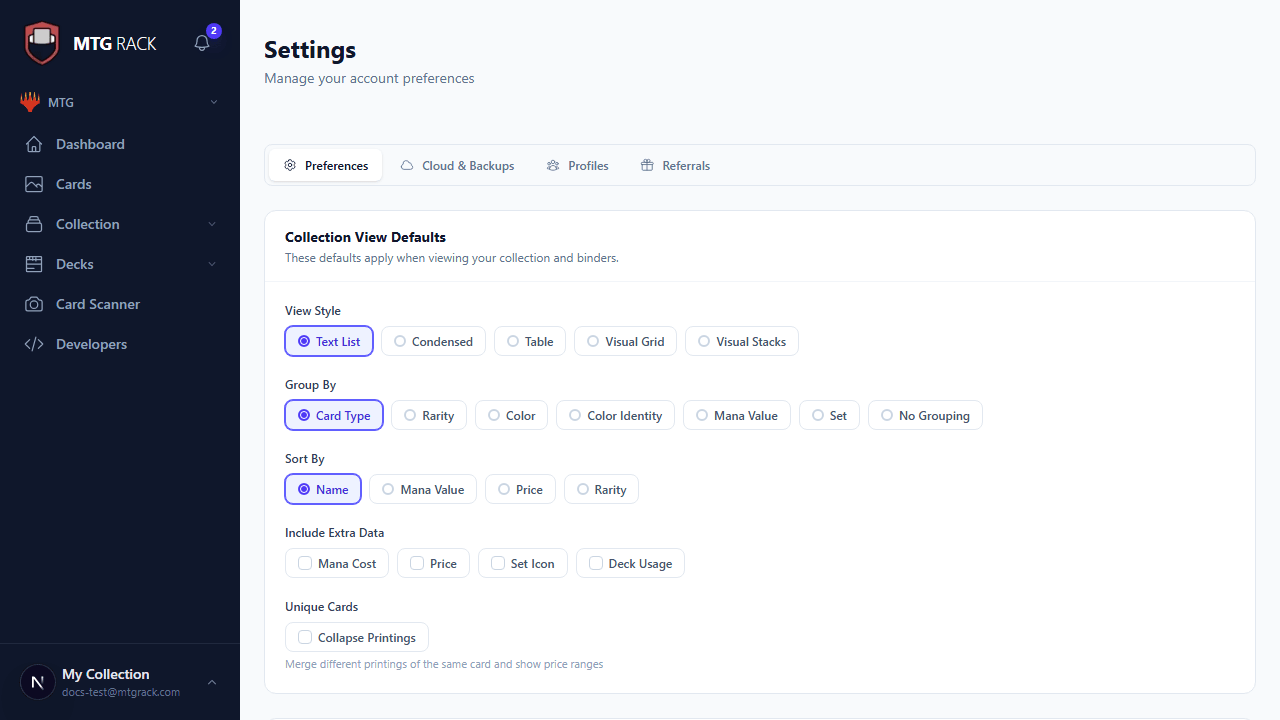
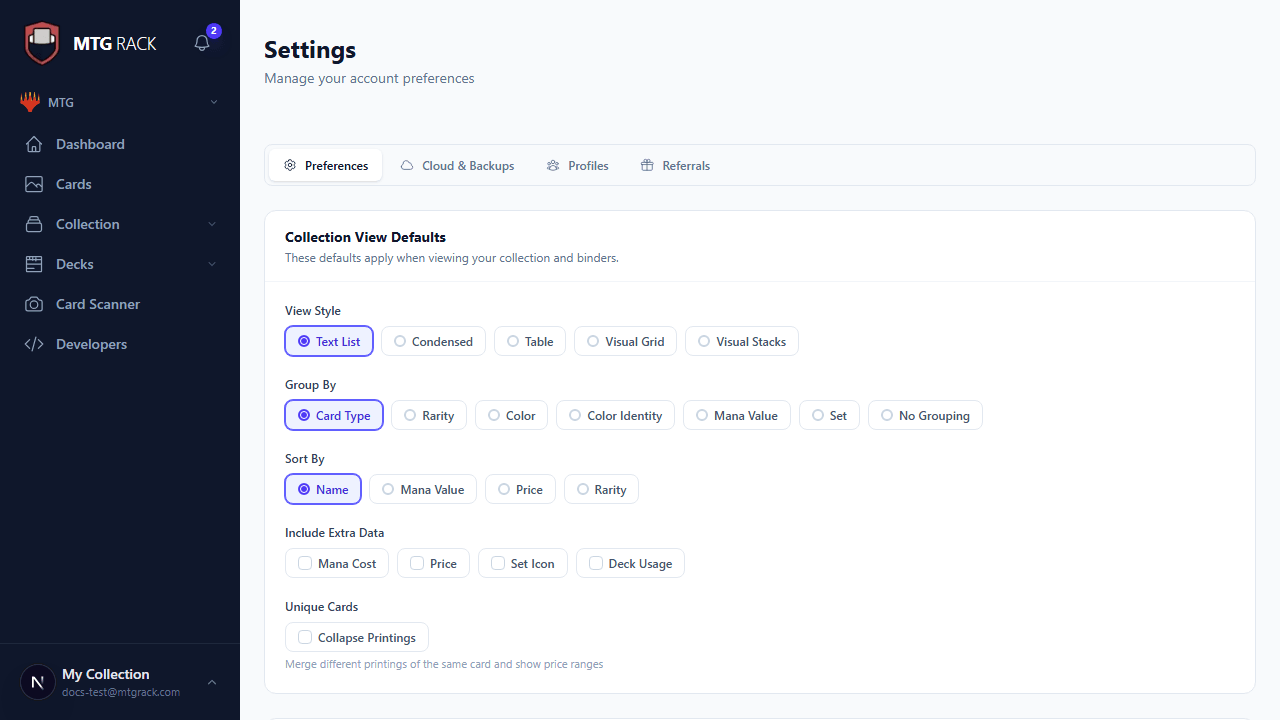
The Preferences tab controls how your collection and card data are displayed throughout the app.
View Style
Choose your default view mode for browsing collections. This sets the initial view when you open any collection page — you can always switch temporarily from the toolbar. Five modes are available:
- Table — spreadsheet-style rows with sortable columns. Best for data-heavy workflows.
- Grid — card images in a responsive grid. Best for visual browsing.
- Stacks — cards grouped into visual piles by a chosen field. Best for seeing distribution.
- Condensed — compact text-only list for maximum density.
- Gallery — large card images with minimal chrome, optimized for showcasing art.
Collection Grouping
Control how cards are grouped when browsing your collection. Grouping organizes cards into labeled sections based on a shared attribute. Seven grouping options are available:
- None — no grouping, cards appear in a flat list.
- Set — group by expansion or product.
- Color — group by card color or color identity.
- Rarity — group by common, uncommon, rare, and mythic rare.
- Type — group by card type (creature, instant, sorcery, etc.).
- Mana Value — group by converted mana cost.
- Custom Tag — group by user-assigned tags.
Sorting
Set your default sort order for collection views. Common sort options include name (A-Z or Z-A), price (high to low or low to high), date added, set release date, mana value, and quantity. Your chosen sort persists across sessions.
Extra Data Toggles
Toggle additional data columns and overlays on or off to customize how much information is displayed alongside each card:
- Mana cost — show the mana cost symbols on each card in grid and gallery views.
- Price — display the current market price beneath or beside each card.
- Set icon — show the expansion symbol next to the card name.
- Deck usage — indicate how many of your decks include this card. Helpful for identifying cards that are heavily used across multiple decks.
Card Database Sorting
Separately from collection sorting, you can configure the default sort order used in the Card Database search results. This controls how results appear when you search the full Scryfall database rather than your own collection.
Currency
Select your preferred display currency for all prices throughout MTG Rack. Supported currencies are:
| Currency | Symbol |
|---|---|
| USD | United States Dollar (default) |
| EUR | Euro |
| GBP | British Pound |
| JPY | Japanese Yen |
| AUD | Australian Dollar |
| CAD | Canadian Dollar |
Prices are converted using daily exchange rates. Changing your currency setting updates all displayed prices immediately — collection values, individual card prices, analytics charts, and export data all reflect your chosen currency.
The Sync & Devices tab manages how your data is synchronized across multiple devices and provides manual backup controls.
Device Management
Every device you sign in from is listed here with its name, browser, and last active timestamp. You can:
- Rename a device — give it a friendly name like "Work Laptop" or "Phone" to easily identify which device is which.
- Remove a device — revoke access for a device you no longer use. The next time someone tries to access MTG Rack from that device, they will need to sign in again.
Sync History
A log of recent sync events showing when data was last pushed to or pulled from the server for each device. This is useful for troubleshooting if you suspect a device is not receiving updates — you can see at a glance when it last synced and whether the sync succeeded or failed.
Manual Backups
While MTG Rack automatically syncs your data to the cloud, you can also create manual backups as an extra safety net. Click Create Backup to take a point-in-time snapshot of your entire account including collections, binders, decks, and settings. A cooldown period applies between manual backups to prevent abuse — you can create one backup per hour.
Backup Restoration
If you need to roll back to a previous state, the backup history shows all available snapshots with their timestamps and sizes. Select a backup and click Restore to replace your current data with the snapshot. Restoration overwrites all current data, so MTG Rack will ask you to confirm before proceeding. Consider creating a fresh backup of your current state before restoring an older one so you have a fallback.
Backup Frequency by Tier
The Profiles tab lets you manage your public identity on MTG Rack. Each profile can have its own display name, avatar, and public handle.
Creating & Editing Profiles
Click New Profile to create an additional profile, or select an existing profile to edit it. Each profile has the following fields:
- Display name — the name shown to other users when you share decks, trade lists, or collaborate.
- Avatar — upload a custom image (JPEG or PNG, max 2 MB) that appears next to your name in shared views and collaboration panels.
- Public handle — a unique username that forms your public profile URL (e.g.,
mtgrack.com/@yourhandle). When you type a handle, MTG Rack checks availability in real time and shows a green checkmark if the handle is available or a red warning if it is taken. Handles that contain banned or offensive terms are automatically rejected. - Country — select your country from a dropdown list. This is used for community features and regional pricing display. It is optional and can be left blank.
Deleting Profiles
You can delete any profile except your primary one. Deleting a profile removes its collection data, binders, and decks. The primary profile can only be removed by deleting your entire account.
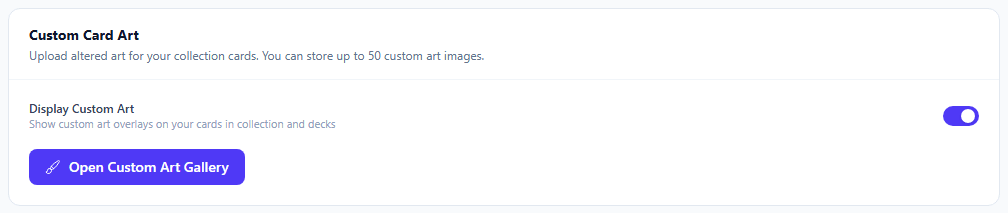
The Custom Art Gallery lets you upload your own artwork to use as card images in your collection. This is popular for alt-art proxies, custom tokens, or cards with sentimental art replacements. The gallery provides a central place to manage all your uploaded art.
- Browse uploads — view all your previously uploaded custom art in a grid. Each thumbnail shows which card it is assigned to.
- Upload custom card art — click Upload Art and select an image file. Supported formats are JPEG, PNG, and WebP, with a maximum file size of 5 MB. After uploading, assign the art to a specific card in your collection.
- Delete art — remove an uploaded image. If the image was assigned to a card, the card reverts to its default Scryfall art.
- Per-card art management — from any card's detail panel, you can assign custom art from your gallery or upload new art directly. Cards with custom art display a small badge so you know they are using your uploaded image rather than the default.
Custom Art Is Private
The Referrals tab lets you earn credit toward your subscription by inviting other players to MTG Rack. Every account receives a unique referral code that you can share with friends, your LGS community, or on social media.
- Referral code — your unique code displayed prominently at the top of the tab. Click to copy it to your clipboard.
- Sharing link — a ready-made URL that includes your referral code (e.g.,
mtgrack.com/signup?ref=YOURCODE). Share this link directly — when someone signs up through it, they are automatically linked to your referral. - Referral stats — see how many people have signed up using your code and how much credit you have earned. Stats include total sign-ups, active referrals (users who stayed beyond the trial period), and the dollar amount of credit applied to your account.
Referral credit is applied automatically to your next billing cycle. If you accumulate enough credit to cover a full month, your subscription renews at no charge for that period. Credit does not expire as long as your account remains active.
Referral Rewards