
Sharing & Publishing
MTG Rack makes it easy to share your decks with friends, your playgroup, or the entire community. Control visibility with public/private/unlisted settings, publish to the Explore feed for community discovery, export in a variety of formats for other tools, and build a deck primer with markdown support. This page covers every sharing and export feature available.
Visibility Settings
Every deck has a visibility setting that controls who can see it. Open the deck settings and choose one of three options:
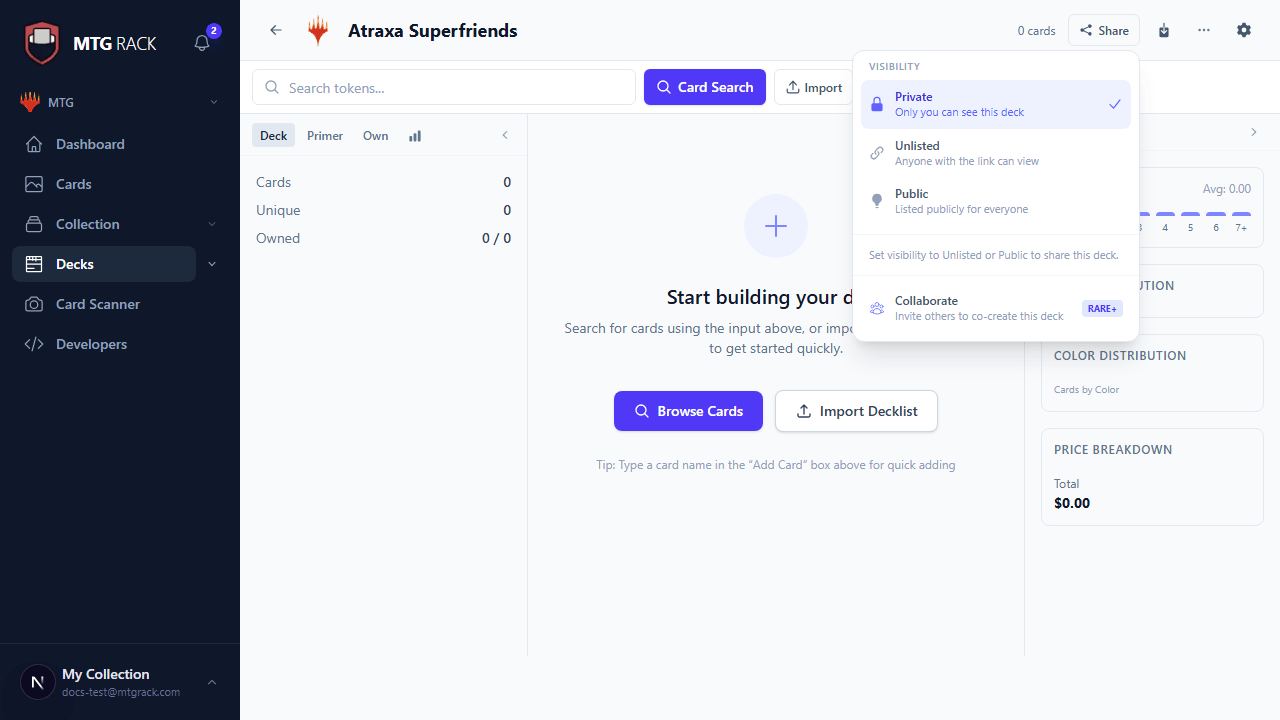
Visibility and Collaboration
Sharing via Public Link
When a deck is set to Unlisted or Public, a shareable URL is generated automatically. Click the Copy Link button in the Share panel to copy it to your clipboard. The URL leads to a read-only view of your deck that shows the full card list, mana curve, color distribution, type breakdown, and card images. Viewers do not need an MTG Rack account to see the deck.
The public deck view is designed to look great when shared — it includes Open Graph meta tags so that when you paste the link in Discord, Twitter, Reddit, or other platforms, a rich preview card appears showing the deck name, format, commander (if applicable), card count, and a thumbnail of the deck's color identity.
Publishing to the Explore Feed
The Explore feed is a public directory of community decks. To publish your deck to the Explore feed, set the deck to Public and click Publish to Explore in the Share panel. Published decks appear in the feed where other users can discover them by browsing, searching, or filtering by format, color identity, and archetype.
You can unpublish a deck from the Explore feed at any time by clicking Remove from Explore. The deck remains Public (viewable via direct link) but no longer appears in the feed. Setting the deck back to Private or Unlisted also removes it from the Explore feed automatically.
Social Sharing
The Share panel includes direct sharing buttons for popular platforms:
- Twitter/X — opens a pre-filled tweet with the deck name, format, and link
- Reddit — opens a new Reddit post with the deck link and basic info
- Discord — copies a formatted message with the deck link ready to paste into a channel
- Facebook — opens a share dialog with the deck link
All social shares use the deck's Open Graph preview, so the post appears with a rich card preview on platforms that support it.
Likes and Comments
Public decks on the Explore feed support likes and comments from other MTG Rack users. The like count appears on the deck card in the Explore feed and on the public deck view. Click the heart icon to like a deck — you can unlike it at any time by clicking again.
Comments appear below the deck on the public view page. They support card name mentions with the [[Card Name]] syntax (which renders a hover preview), threaded replies, and markdown formatting. As the deck owner, you can moderate comments on your decks: delete inappropriate comments or disable comments entirely from the deck settings.
View Count Tracking
Public and unlisted decks track view counts. The view count is displayed on the deck's page and in the deck list so you can see which of your decks are getting the most attention. Views are de-duplicated per-session, so a single user refreshing the page multiple times does not inflate the count. As the deck owner, you can see a basic view history showing views over time.
Deck Primer and Notes
Add a Primer to your deck to provide context, strategy explanations, matchup guides, and sideboard plans. The primer editor supports full markdown with the following features:
- Headings, bold, italic, and strikethrough text
- Ordered and unordered lists
- Code blocks for decklist snippets
- Card name auto-linking with
[[Card Name]]syntax - Embedded images and links
- Tables for matchup breakdowns
The primer is displayed prominently on the public deck view, above the comments. A well-written primer turns a decklist into a full guide that helps other players understand your card choices, play patterns, and sideboard decisions.
Primer Visibility
Export Formats
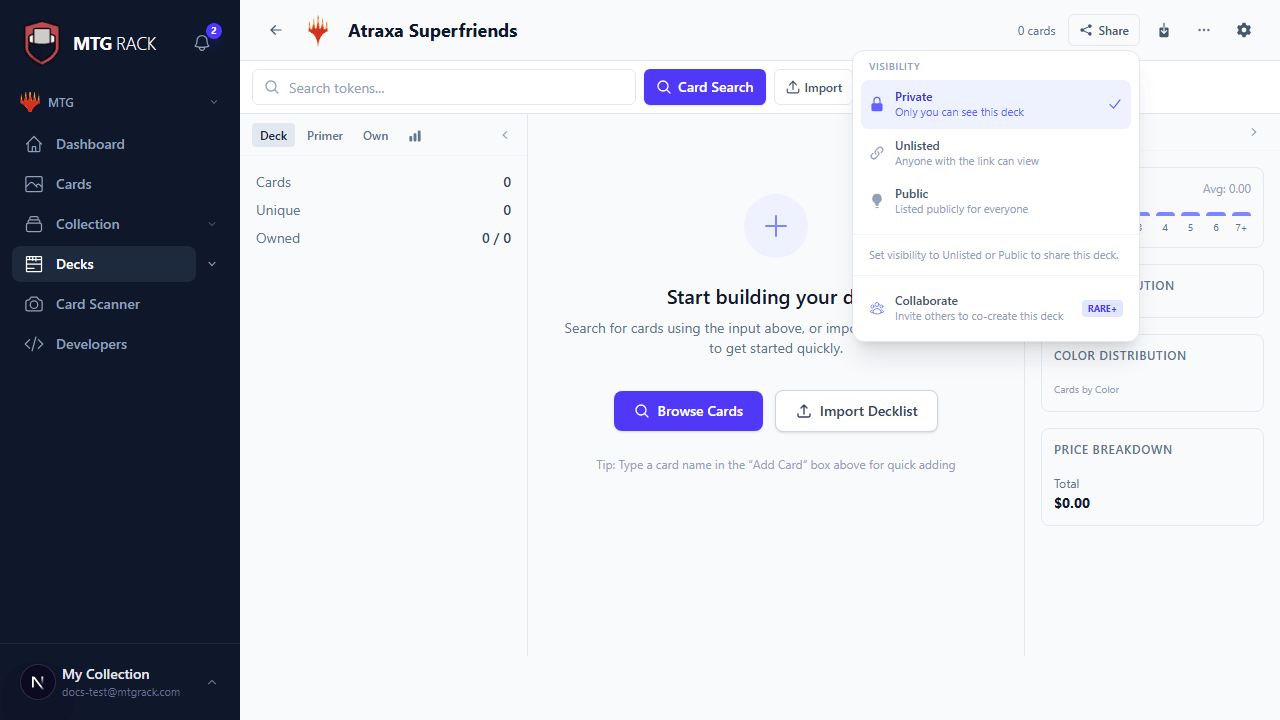
Click the Export button in the deck toolbar to open the export menu. MTG Rack supports the following export formats:
Text Export
Exports your deck as plain text in the standard format used across the MTG community: one card per line with the quantity first, for example 4 Lightning Bolt. Section headers are included as // Sideboard, // Commander, etc. This format is universally accepted by forums, Discord, and most deck building websites. Click Copy to Clipboard for instant pasting.
MTGO Format
Exports in the .dek format accepted by Magic: The Gathering Online. Download the file and import it directly into MTGO to build or play the deck there. The export handles the MTGO-specific card name formatting and set codes automatically.
CSV Export
Exports full deck data as a comma-separated values file. Each row contains the card name, quantity, set code, collector number, section (mainboard, sideboard, etc.), foil status, and current market price. This format is ideal for spreadsheets, data analysis, or custom scripting.
JSON Export
Exports the deck as a structured JSON file containing all deck metadata, card data, sections, and settings. This is the most complete export format and is suitable for developers building tools, bots, or integrations that consume deck data. The JSON schema is documented in the API Reference.
Third-Party Format Exports
MTG Rack supports export formats compatible with popular third-party tools:
- Archidekt — export in Archidekt's text format for direct import
- TappedOut — export in TappedOut's format with set codes and categories
- MTGGoldfish — export in the format used by MTGGoldfish for deck pages
- Cockatrice — export as a
.codfile for use in the Cockatrice game client
Deck Code Import and Export
MTG Rack generates a compact deck code for every deck — a short alphanumeric string that encodes the entire decklist. Share the code with friends and they can import it into their own MTG Rack account with a single paste. Deck codes are shorter than full URLs and work well in contexts where links are unwieldy, such as in-game chat or text messages.
To import a deck code, click Import on the deck list page and select From Deck Code. Paste the code and the deck is created in your account instantly, including all card choices, sections, and the original primer (if the source deck was public).
Share URL
Every public or unlisted deck has a permanent URL at mtgrack.com/decks/[id]. This URL is stable — it does not change when you rename the deck, move it between folders, or modify its contents. Bookmarking or linking to a deck URL always shows the current version of the deck. If the deck is later set to Private, the URL returns a 404 for unauthorized users while remaining accessible to the owner and collaborators.
Import from Other Tools
Next Steps