
Deck Editor
The deck editor is where your brews come to life. This guide covers every feature of the editor in depth — from the two-panel workspace and card search to custom sections, view modes, the highlighter tool, and full revision history. If you are looking for a quick overview of deck building, start with the Building Decks page first.
Two-Panel Workspace
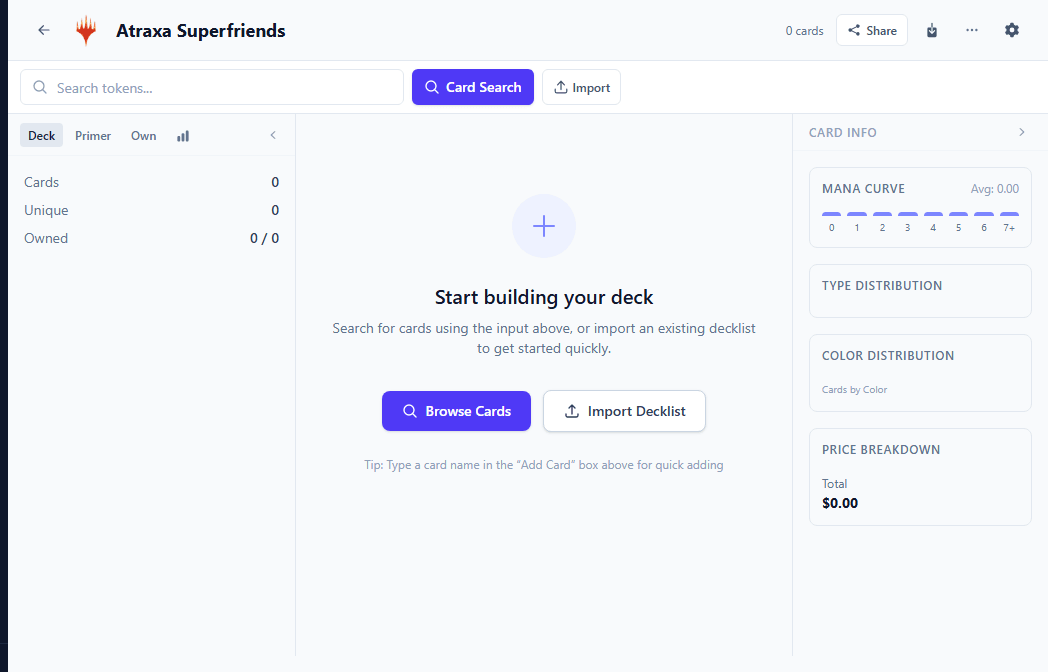
The editor is split into two panels. The left panel contains your decklist organized by section, with each card showing its name, quantity, mana cost, and set icon. The right panel displays a full-size card preview that updates instantly as you hover over any entry in the list. This layout means you never need to leave the editor to check card text, art, or oracle wording — everything is visible at a glance while you work on your list.
On smaller screens, the preview panel collapses into a slide-out drawer that appears when you tap a card. On ultra-wide monitors, the preview panel expands to show both faces of double-faced cards side by side.
Adding Cards via Search
The search bar at the top of the editor is the primary way to add cards. Start typing a card name and autocomplete results appear instantly, powered by the Scryfall database. Each result shows the card name, mana cost, type line, and set icon so you can identify the right card without guessing. Click a result to add one copy to your mainboard — the editor automatically places it in the correct type-based section (Creatures, Instants, Sorceries, and so on).
If you need a specific printing, click the expand arrow on a search result to see all available set printings and art variants. Select the exact version you want before adding it. This is especially useful when you care about specific art, promo treatments, or foil availability.
Pasting Decklists
Already have a decklist from another site, a forum post, or a Discord message? Click the Paste List button in the toolbar to open the text import modal. Paste your list in the standard text format — one card per line with the quantity first, for example 4 Lightning Bolt or 2x Counterspell. The editor parses the list, resolves each card name against Scryfall, and adds them all at once.
The parser recognizes section headers like // Sideboard, SB:, and // Commander, so cards are placed into the correct zones automatically. Unrecognized lines are highlighted so you can fix them before confirming the import.
Fuzzy Matching
Drag-and-Drop Reordering
Cards can be reordered within a section by dragging them up or down. You can also drag a card from one section to another — for example, dragging a creature from the mainboard into the sideboard, or from the auto-categorized "Creatures" section into a custom "Win Conditions" section. The drop target highlights as you drag so you always know where the card will land. Drag-and-drop works across all view modes, though it is most intuitive in List and Table views.
Deck Sections
Every deck supports the following built-in sections:
| Section | Description |
|---|---|
| Mainboard | The core of your deck. Within the mainboard, cards are automatically grouped by type (Creatures, Instants, Sorceries, Artifacts, Enchantments, Planeswalkers, Lands). |
| Sideboard | Up to 15 cards (in 60-card formats) that you can swap in between games. |
| Maybeboard | A holding area for cards you are considering but have not committed to. Maybeboard cards do not count toward your deck total or affect statistics. |
| Command Zone | For Commander and related formats, this is where your commander, partner(s), and companion live. |
| Tokens | Tokens and emblems that your deck creates. These are listed for reference so you remember to bring them to the table. |
Custom Sections
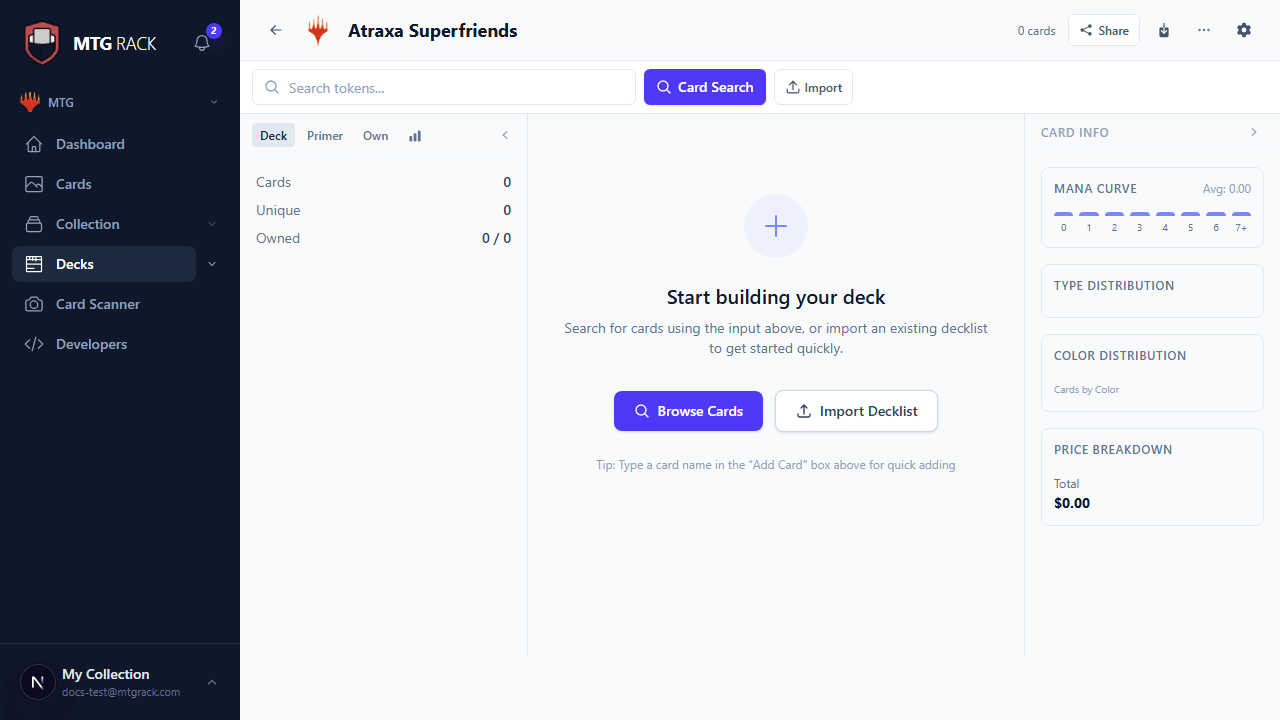
Click Add Section at the bottom of the decklist to create a custom section. Name it anything you like — popular choices include "Ramp," "Removal," "Card Draw," "Win Conditions," "Interaction," and "Tutors." Custom sections let you organize your mainboard by strategic role rather than card type, which many players find more useful when evaluating whether a deck has the right balance of effects.
Custom sections are purely organizational — they do not change how cards function or how stats are calculated. You can rename or delete custom sections at any time. When you delete a custom section, the cards inside it move back to the default type-based categorization in the mainboard.
Right-Click Context Menu
Right-click any card in the editor to open a context menu with quick actions:
- Move to Mainboard, Sideboard, Maybeboard, or Command Zone
- Move to a custom section
- Change quantity (+1, -1, or set a specific number)
- Change printing (switch to a different set or art variant)
- Add a note or annotation
- Remove from deck
The context menu is the fastest way to reorganize cards between zones without dragging. It is available in all view modes.
Quantity, Notes, and Printing Selection
Each card entry shows + and - buttons for adjusting the quantity. Click the quantity number directly to type in an exact count. For Commander decks, the editor warns you if you add more than one copy of a non-basic-land card.
Click the note icon on any card to add a per-card annotation. Use notes to remind yourself why a card is in the deck, record sideboard plans ("bring in against control"), or flag cards you want to test. Notes are visible in List and Table views as a subtle indicator icon, and the full text shows on hover.
To change a card's printing, right-click and select Change Printing, or click the set icon on the card entry. A panel shows all available printings with set name, collector number, and art thumbnail. Pick the exact version you want — this is especially useful when you care about price (some printings are significantly cheaper) or specific art.
Auto-Save and Revision History
The editor auto-saves every change within seconds. You never need to manually save, and closing the browser tab mid-edit will not lose your work. Every save creates a new revision in the deck's history.
Open the History panel from the toolbar to see a chronological list of all revisions. Each entry shows a timestamp and a summary of what changed (cards added, removed, or moved). Click any revision to preview that version of the deck, and click Revert to restore it. Reverting creates a new revision, so you can always undo a revert if needed — nothing is ever permanently lost.
Revision History Limits
View Modes
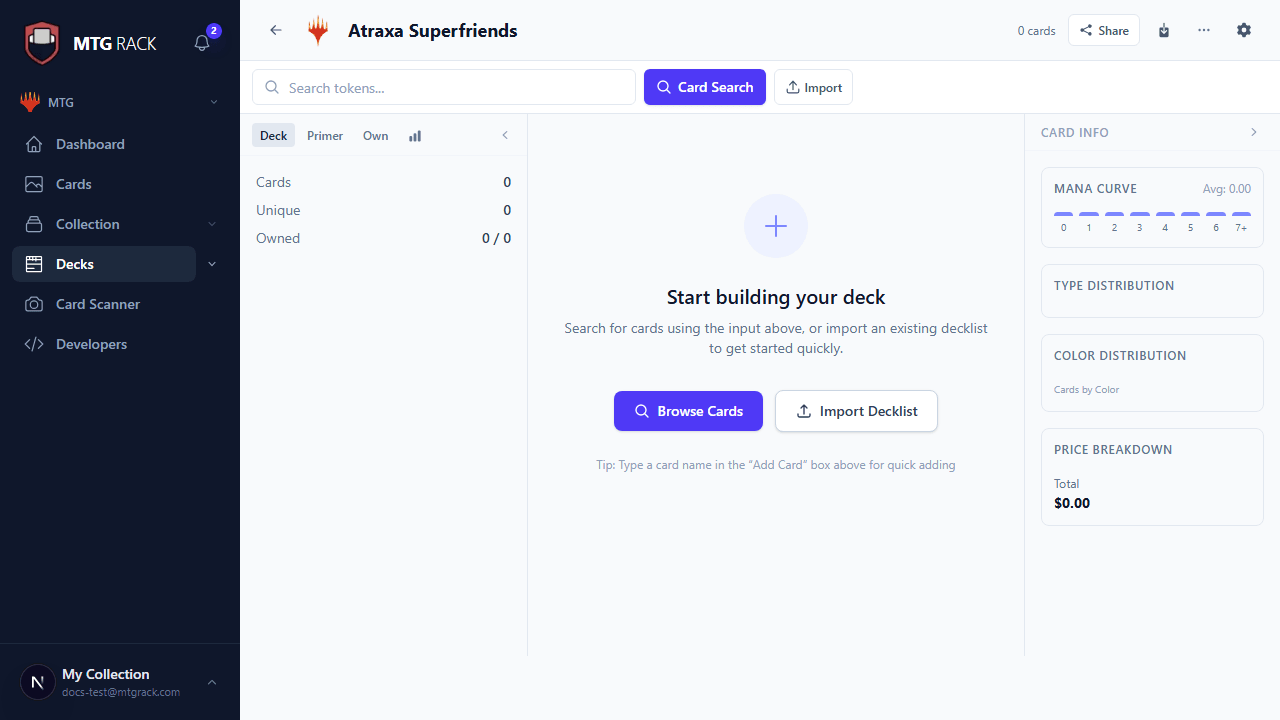
The editor supports multiple view modes to suit different workflows. Switch between them using the view toggle in the toolbar — your preference is saved per deck:
Commander and Partner Designation
For Commander-format decks, designate your commander by right-clicking a legendary creature and selecting Set as Commander. The card moves to the Command Zone section and the editor uses its color identity to validate the rest of your deck. If your commander has the Partner keyword, you can designate a second commander the same way. The editor enforces the 100-card deck size, singleton rule, and color identity restrictions automatically.
Format Legality Checking
When a format is set on your deck, the editor checks every card against the current ban list and format legality data from Scryfall. Cards that are banned, restricted, or not legal in the chosen format are flagged with a warning icon next to their name. Hovering over the warning shows the specific legality status (e.g., "Banned in Modern" or "Not legal in Standard"). This check updates automatically as Scryfall refreshes its data, typically within hours of official ban announcements.
Format Legality
The Highlighter Tool
The Highlighter is a visual analysis tool that marks cards in your deck based on criteria you choose. Click the highlighter icon in the toolbar to open the panel, then select one or more criteria:
- Color — highlight all cards of a specific color or color combination
- Card type — highlight all creatures, all instants, all lands, etc.
- Mana value — highlight cards at or above/below a specific CMC threshold
- Custom tags — highlight cards you have tagged with specific labels
- Price range — highlight cards above or below a price threshold
Matching cards receive a colored glow that is visible in all view modes. You can apply multiple highlight criteria simultaneously with different colors, creating a heat map of your deck. This is invaluable for spotting gaps — for example, highlight all cards with CMC 3+ in red to see if your curve is too heavy, or highlight all removal spells in blue to check you have enough interaction.
Keyboard Shortcuts
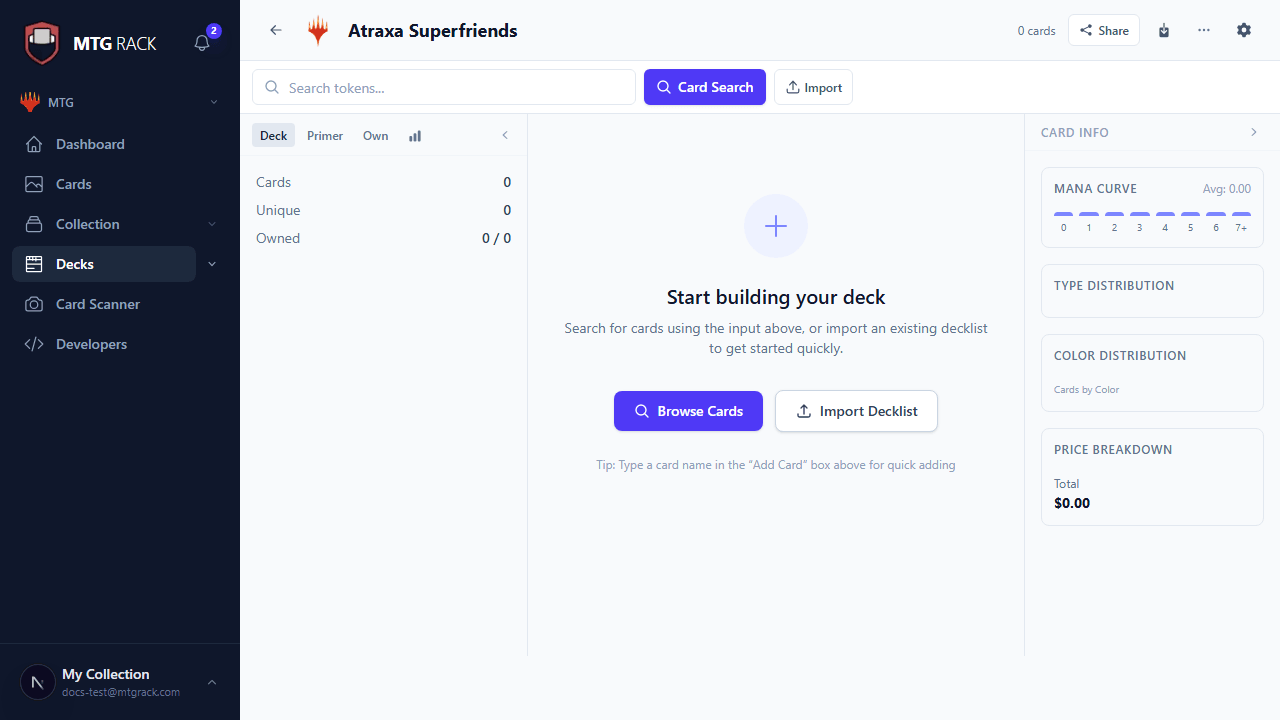
The editor supports keyboard shortcuts for common actions:
| Shortcut | Action |
|---|---|
Ctrl+F / Cmd+F | Focus the card search bar |
Ctrl+Z / Cmd+Z | Undo the last action |
Ctrl+Shift+Z / Cmd+Shift+Z | Redo |
Ctrl+S / Cmd+S | Force save (though auto-save handles this) |
Ctrl+V / Cmd+V | Paste a decklist from clipboard |
Delete | Remove the selected card from the deck |
Next Steps