
Dashboard
The dashboard is your home base in MTG Rack. It gives you an at-a-glance overview of every game you track — total cards owned, unique printings, and the current market value of each collection. Whether you play a single game or juggle collections across Magic: The Gathering, Pokémon, and more, the dashboard keeps every number front and center so you always know where your portfolio stands.
Multi-Game Overview
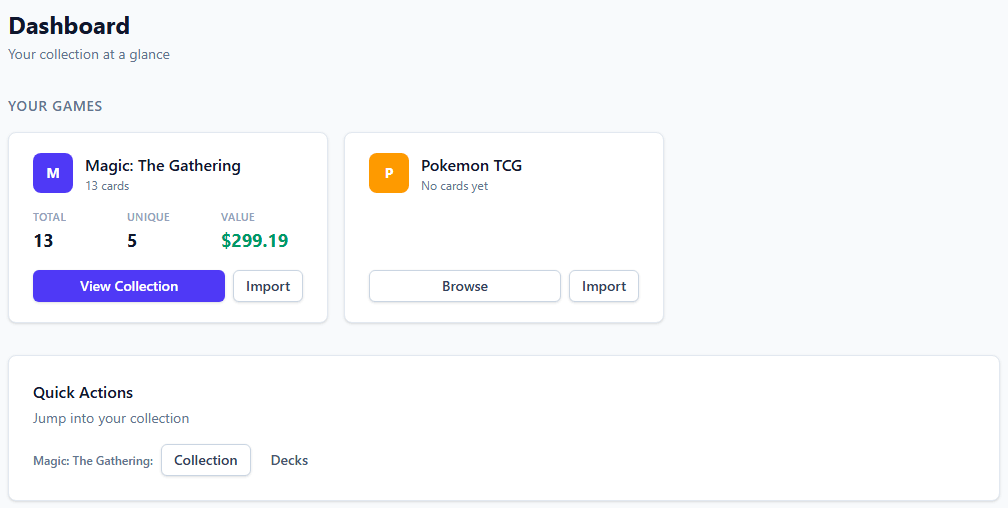
When you first log in, the dashboard loads a summary card for every game you have registered in MTG Rack. Each card displays three key metrics: the total number of cards in your collection for that game, the count of unique cards (distinct printings regardless of quantity), and the estimated portfolio value calculated from current TCGplayer market prices. These numbers update automatically whenever you add, remove, or edit cards in any collection.
The summary cards are arranged in a responsive grid that adapts to your screen size — on wide monitors you will see them side by side, on tablets and phones they stack vertically. Each card is color-coded to match the game it represents, making it easy to distinguish between collections at a glance even when you have several active games.
Stats Cards
Each game's summary card is broken down into clearly labeled statistics. The Total Cards count reflects every individual copy you own, including duplicates — if you have four copies of Lightning Bolt across two sets, that counts as four. The Unique Cards count shows how many distinct card-plus-set combinations you have cataloged, which is useful for tracking how broad your collection is. The Portfolio Value is the sum of current market prices for every entry, factoring in quantity. Foil and non-foil copies are priced independently, so the value you see reflects real-world pricing as closely as possible.
The stats cards also display a small trend indicator showing whether your portfolio value has gone up or down since your last session. This makes it easy to spot when a price spike in one of your cards has materially changed your collection's worth.
Portfolio Summary
When you have two or more active games, the dashboard surfaces an aggregated Portfolio Summary section at the top of the page. This section rolls up your total card count, unique card count, and combined portfolio value across every game into a single set of headline numbers. It gives you a unified view of your entire collecting footprint without needing to visit each game individually.
The portfolio summary also includes a proportional breakdown bar that visualizes how much of your total value comes from each game. If 80% of your portfolio is in Magic and 20% is in Pokémon, you will see that split represented visually. This is especially helpful for collectors who want to keep their investment balanced across games or who want to understand at a glance where the bulk of their value sits.
Single-Game Collections
Per-Game Quick Actions
Each game summary card includes quick-action buttons so you can jump straight into common workflows without navigating through menus. The two primary actions are:
- View Collection — opens the full collection view for that game, where you can browse, filter, sort, and manage every card you own.
- Import — takes you directly to the import flow for that game, letting you upload a CSV, paste a text list, or use the card scanner to add cards in bulk.
These buttons save time when you know exactly what you want to do. Rather than navigating to a game, then to its collection, then to the import page, you can reach the right screen in a single click from the dashboard.
Deck Collaboration Invite Banner
If another user has invited you to collaborate on a deck, a banner appears at the top of the dashboard notifying you of any pending invitations. The banner shows the name of the deck, the user who sent the invite, and the permission level being offered (view-only or edit access). You can accept or decline the invitation directly from the banner without leaving the dashboard.
Accepted decks appear in your Decks section with a collaboration badge, making them easy to distinguish from decks you created yourself. Declined invitations are dismissed and will not reappear. If you are not currently collaborating on any decks and have no pending invitations, the banner is hidden entirely to keep the dashboard clean.
Managing Collaborations
Navigating From the Dashboard
The dashboard is designed as a launching pad into every other feature in MTG Rack. Beyond the quick-action buttons on each game card, you can navigate using the sidebar that is always visible on the left side of the screen. The sidebar provides direct links to:
| Section | Description |
|---|---|
| Collection | Your full card catalog with filtering, sorting, and multiple view modes. See Managing Your Collection. |
| Binders | Organize subsets of your collection into themed groups. See Binders. |
| Decks | Build and manage decklists with legality checks, mana curve analysis, and collaboration. See Decks. |
| Import / Export | Bring data in from external tools or export your collection for backup. See Import & Export. |
| Analytics | Deep-dive into portfolio trends, price history, and collection composition. See Analytics. |
On mobile devices, the sidebar collapses into a hamburger menu to maximize screen space. Tapping the menu icon reveals the full navigation list. Your current location is always highlighted in the sidebar so you know where you are within the app.
Layout and Sidebar Navigation
The overall application layout follows a consistent pattern across every page: a fixed sidebar on the left, a top header bar showing your account and the current game context, and a main content area that fills the remaining space. The dashboard uses this same layout, with its summary cards and portfolio section rendered in the main content area.
The sidebar groups navigation items by category. Game-specific features like Collection, Binders, and Decks are grouped under the currently selected game, while cross-cutting features like Import/Export and Analytics sit in their own section. The Dashboard link always appears at the top of the sidebar, giving you a one-click path back to the overview from anywhere in the app.
If you manage collections for multiple games, a game switcher appears near the top of the sidebar. Selecting a different game updates the sidebar links and routes you to that game's context. The dashboard itself is game-agnostic — it always shows all games regardless of which one is currently selected in the sidebar, so you never lose sight of the big picture.
Keyboard Shortcut