
Organizing with Binders
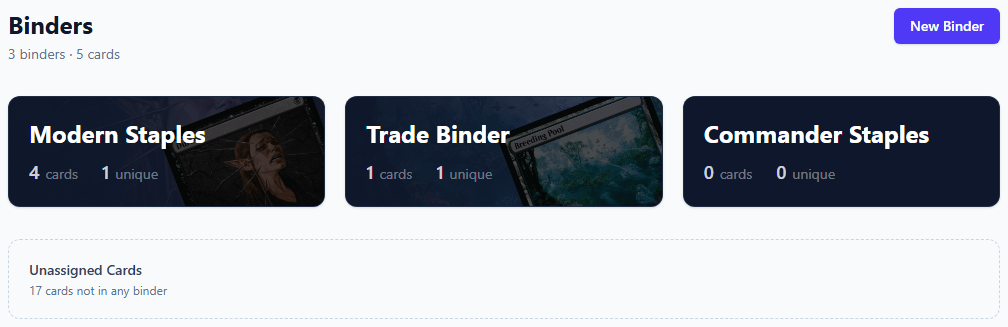
Binders are virtual folders that let you organize your collection into logical groups. Just like physical binders, they give you a way to separate cards by purpose — keeping your trade stock apart from your Commander staples, or tracking completion progress for a specific set. Unlike physical binders, reorganizing is instant and a card's market value updates automatically regardless of which binder it lives in.
What Binders Are For
Every card in your collection can optionally belong to a binder. Binders do not change anything about the card itself — they are purely an organizational layer on top of your collection. Think of them as tags or folders. Common use cases include:
Creating a Binder
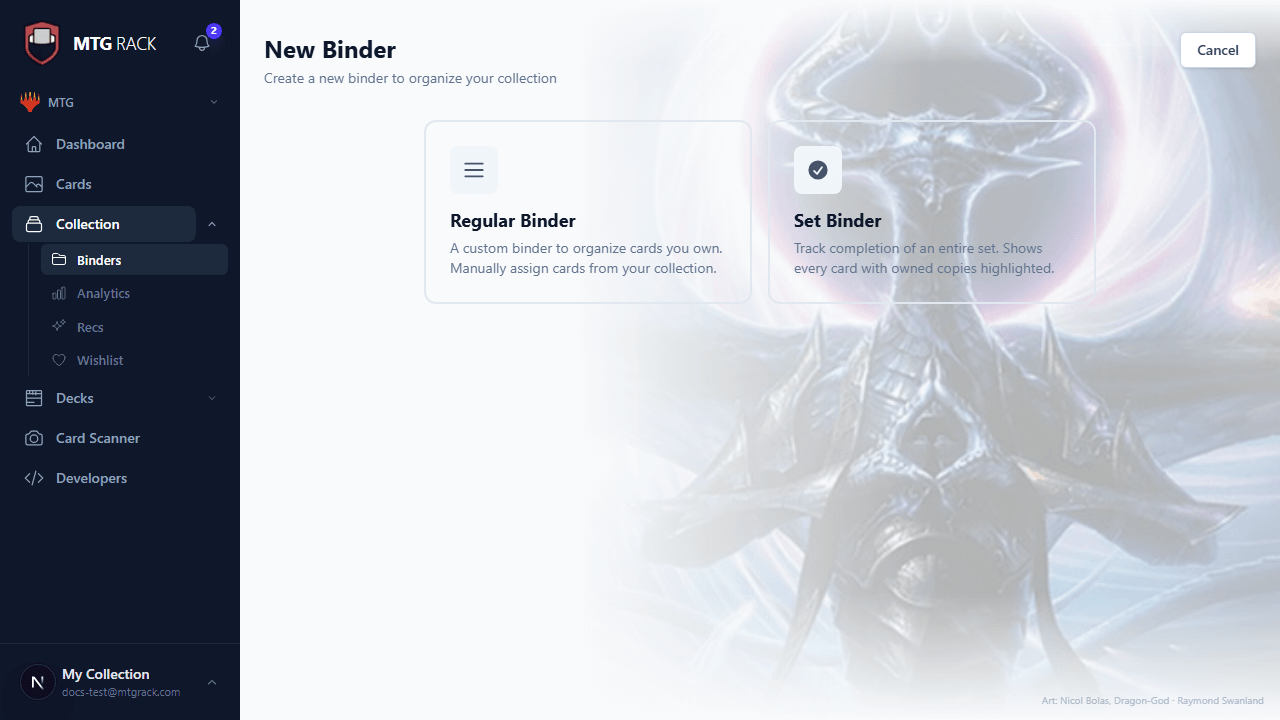
Open the Binders section from the sidebar and click New Binder. Each binder needs a unique name — you cannot have two binders with the same name. You can add an optional description (useful for trade binders to note your trading preferences) and choose a cover color or image. Binders are always private to your account by default — other users cannot see them unless you explicitly share a link.
Adding Cards to a Binder
There are several ways to put cards into a binder:
Select one or more cards using the checkboxes, then use the bulk action menu in the toolbar to assign them to a binder. You can select cards across multiple pages before applying the action.
Click any card to open its detail panel, then use the binder dropdown to pick a destination binder. This is the fastest method for individual cards.
When importing a CSV or text list, you can specify a target binder in the import options. All imported cards will be assigned to that binder automatically, saving you from having to organize them afterward.
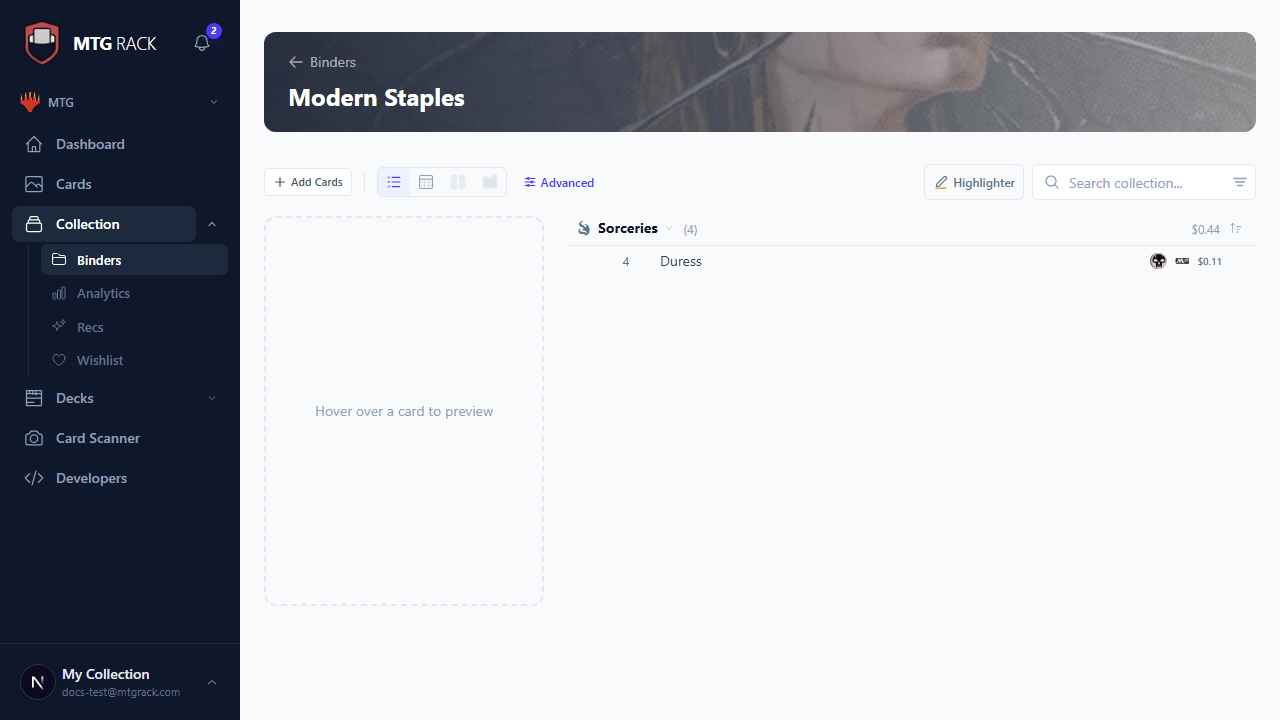
Open a binder, use the search bar, and add cards directly. The card is added to both your collection and the binder in one step.
Moving and Removing Cards
To move a card from one binder to another, select it and use the bulk action menu to change its binder assignment. To remove a card from a binder without deleting it from your collection, select it and choose Remove from Binder. The card stays in your collection and can be reassigned to a different binder at any time.
One Binder Per Card
Set Completion Tracking
When you create a binder linked to a specific set, MTG Rack automatically calculates your completion percentage. The binder view shows which cards from the set you own and which you are missing, with a progress bar at the top. This is especially useful for collectors working through a new expansion — you can see at a glance how many rares, mythics, and commons you still need to open or acquire.
Managing Binders
From the binder list view, you can rename, reorder, or delete binders. Deleting a binder does not delete the cards inside it — the cards remain in your collection and simply become unassigned. You can reassign them to another binder at any time. To merge two binders, open the source binder, select all cards, and use the bulk action to move them to the destination binder, then delete the now-empty source binder.
Binders can be reordered by dragging them in the sidebar or binder list to match your preferred workflow. The order is saved per-account and syncs across all your devices.