
Packages
Packages are reusable card lists and deck templates that you can create, share, and import into any deck. Think of them as building blocks — a "Simic Ramp Package" with your go-to ramp suite, a "Mono-Red Burn Core" with essential burn spells, or a "Mana Base Template" for a specific color combination. Instead of rebuilding the same card groups from scratch every time you start a new deck, save them as packages and drop them in with a single click.
What Packages Are
A package is a named, portable card list with metadata. Unlike a full deck, a package does not have format restrictions, section requirements, or a card count target. It is simply a curated group of cards that belong together for a specific purpose. Packages can contain any number of cards, each with a specified quantity. They are designed to be modular — you create a package once and reuse it across as many decks as you want.
Packages are also a community feature. You can publish your packages for other users to discover, bookmark, and import. This makes them ideal for sharing deck-building knowledge — experienced players can publish their optimized staples packages, and newer players can browse the community library to find proven card combinations.
Browsing Packages
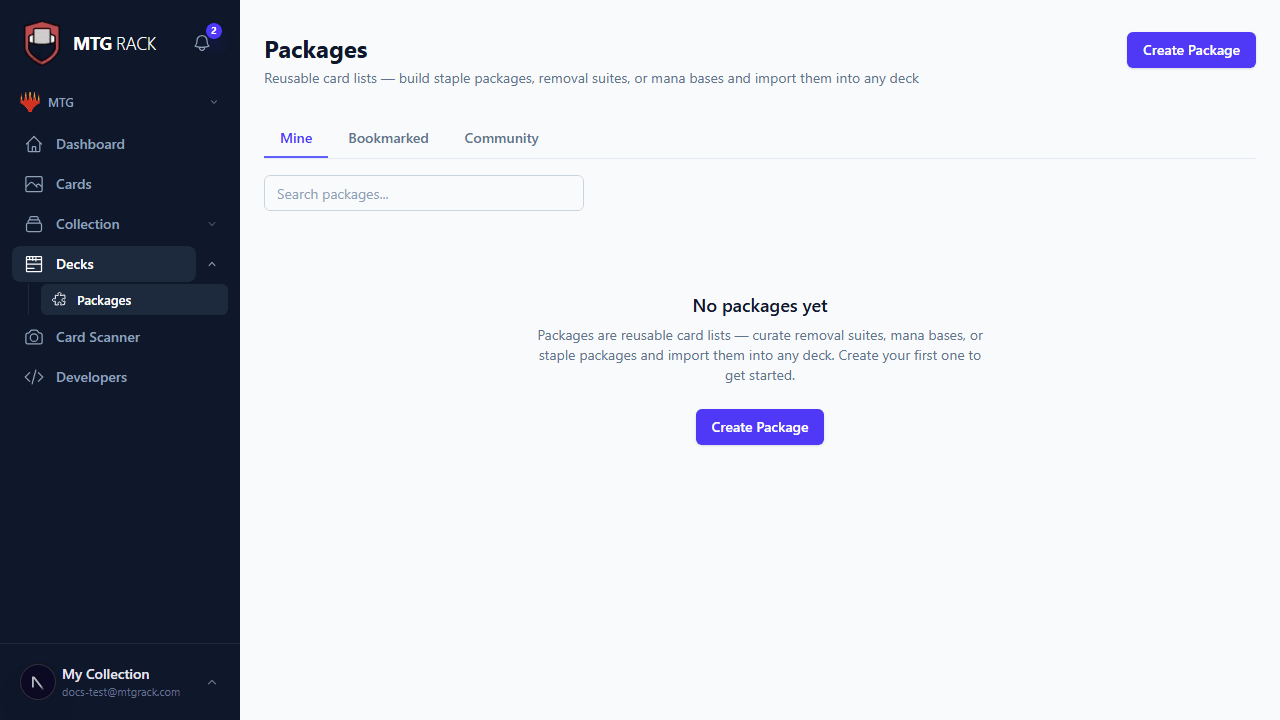
The packages page is organized into three tabs to help you find what you need:
Packages you have created. This is your personal library of reusable card groups. You have full control to edit, publish, unpublish, or delete these packages.
Packages from other users that you have bookmarked (starred) for quick access. Bookmarking a package does not copy it — you are saving a reference to the original, so you always see the latest version.
All publicly published packages from every user on the platform. Browse, search, and discover new card combinations shared by the community.
Creating a New Package
Click New Package to open the creation form. Follow these steps:
Name your package
Choose a descriptive name (e.g., "Esper Control Shell" or "Budget Mana Rocks"). Pick something clear so you can find it later and so community browsers understand what it contains.
Add a description
Write an optional longer description explaining the purpose of the package, how to use it, and what decks or strategies it is designed for. Markdown formatting is supported.
Add cards
Use the search bar to add cards, just like the deck editor. Each card can have a specified quantity. You can also paste a text list to add multiple cards at once.
Set format and tags
Optionally tag the package with a format (Commander, Modern, Standard, etc.) and add category tags like "ramp," "removal," "card draw," or "mana base" to improve searchability in the community tab.
Package Discovery
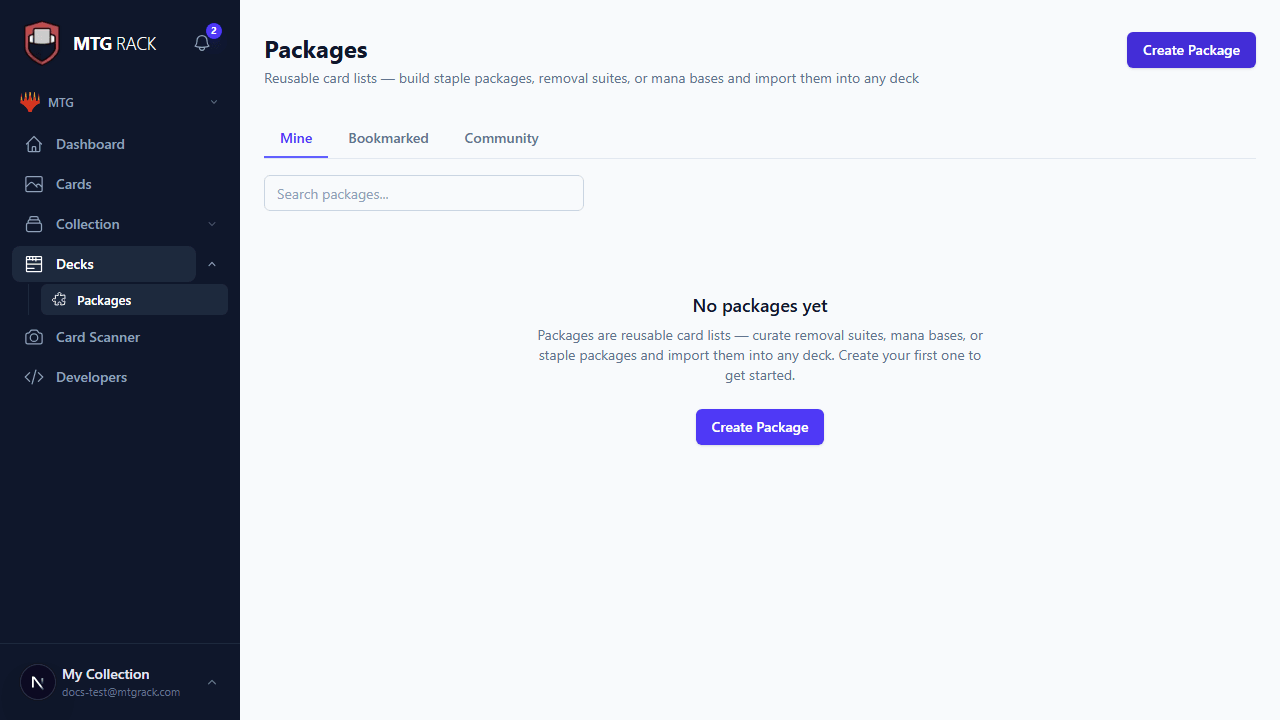
In the Community tab, you can find packages using several discovery tools:
- Search — search by package name or description. The search is fuzzy, so partial matches and close spellings will still return results.
- Format filtering — filter to show only packages tagged for a specific format. This is the fastest way to find format-appropriate card groups when you are building a deck for a particular format.
- Card count display — each package card shows how many cards it contains, so you can quickly gauge its scope.
- Author info — see who created each package. Tap the author name to view their public profile and other published content.
Bookmarking and Starring Packages
When you find a community package you like, click the bookmark (star) icon to save it to your Bookmarked tab. Bookmarked packages appear alongside your own packages for quick access. You can bookmark as many packages as you want. To remove a bookmark, click the star icon again to toggle it off.
Bookmarks Stay Updated
Package Details View
Click any package to open its detail view. Here you can see the full card list with card images, mana costs, and current market prices. The detail view also shows the package description, format tag, category tags, author information, total card count, and the total estimated value of all cards in the package. For packages you own, the detail view includes edit and delete controls.
Importing a Package into a Deck
The primary use case for packages is importing them into decks. From the package detail view, click Import to Deck and select the target deck. All cards from the package are added to the deck's mainboard with their specified quantities. If a card from the package already exists in the deck, the quantity is increased rather than creating a duplicate entry. After import, you can adjust quantities, move cards between sections, or remove cards that do not fit — the import is a starting point, not a locked template.
Format Checks Apply
Publishing and Unpublishing
By default, packages you create are private — only visible to you. To share a package with the community, open it and click Publish. The package will appear in the Community tab for all users to discover, bookmark, and import. You can unpublish a package at any time by clicking Unpublish, which removes it from the community listing. Users who bookmarked it will lose access, but any cards they already imported into their decks remain unaffected.
Editing and Deleting Packages
You can edit any package you own at any time. Changes to a published package are reflected immediately for all users who have bookmarked it. You can update the name, description, card list, format, and tags. To delete a package, open it and click Delete. This action is permanent and cannot be undone. If the package was published, it is removed from the community listing and all user bookmarks.
Exporting Packages
Export a package as a text list, CSV, or JSON file for use outside of MTG Rack. The text export uses the standard "4 Lightning Bolt" format, making it easy to paste into other deck-building tools, forum posts, or messaging apps. The CSV and JSON exports include full card metadata (set codes, prices, types) for use in spreadsheets or custom scripts. See Import & Export for details on supported export formats.