
Card Scanner
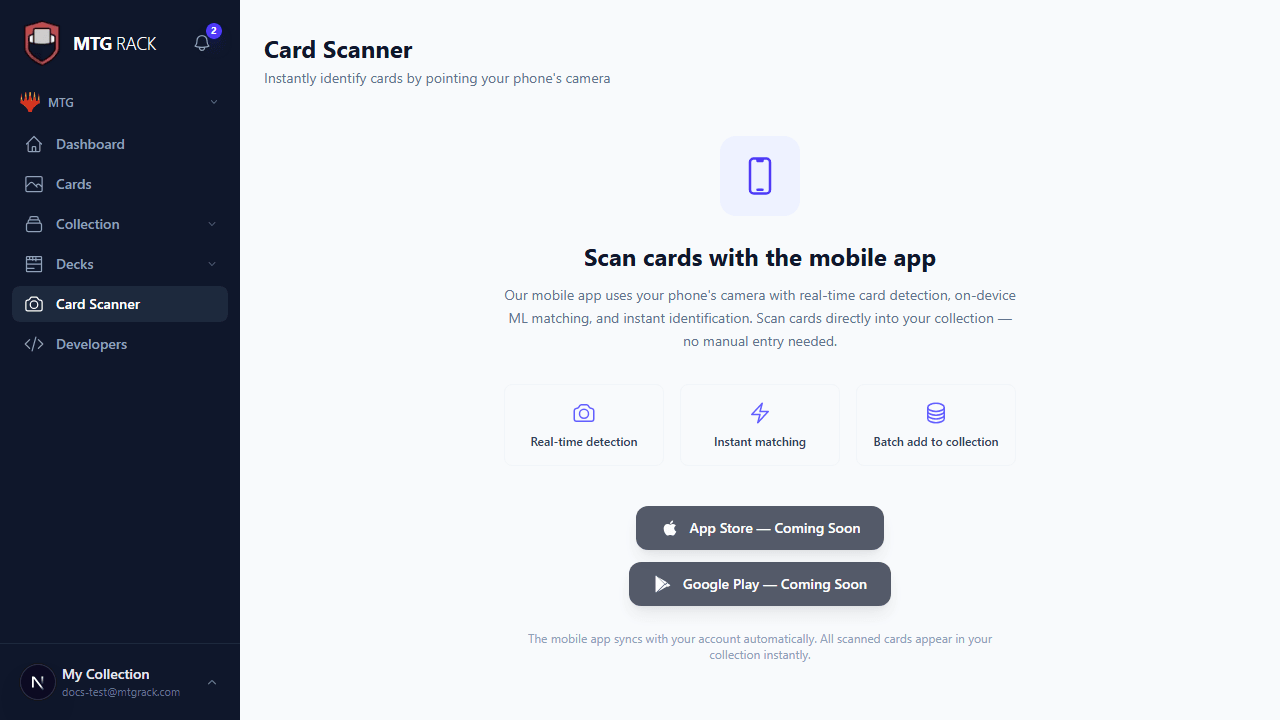
The card scanner uses your device's camera to identify physical Magic and Pokemon cards and add them to your collection instantly. Point your camera at a card, wait for the recognition engine to match it, and confirm — no manual searching or typing required. It is the fastest way to catalog a stack of cards you just pulled from a booster box or picked up at a trade.
How It Works
The scanner captures a video frame from your camera, extracts visual features from the card image (artwork, frame, title, and set symbol), and matches those features against the Scryfall card image database. The entire process takes about one to two seconds per card. Once a match is found, the scanner shows the matched card name, set, and printing. You confirm the result and it is added to your import queue.
The scanner identifies the specific printing — not just the card name — so it can distinguish between, for example, a Tenth Edition Lightning Bolt and a Revised Lightning Bolt. This matters because different printings can have significantly different market values.
Device Requirements
The card scanner works in any modern browser that supports the MediaDevices API for camera access. This includes:
- Mobile — Safari on iOS 14.5+, Chrome on Android. The rear-facing camera on a phone or tablet gives the best results due to higher resolution and autofocus capabilities.
- Desktop — Chrome, Firefox, Edge, and Safari on macOS. Webcams work but typically produce lower-quality images than phone cameras, so recognition may be slightly less accurate.
Your browser will ask for camera permission the first time you open the scanner. Grant it — the video feed is processed locally in your browser and card images are only sent to our server for matching, never stored.
Scanning Workflow
The scanning process follows four steps:
Point
Open the scanner from Collection → Scan or the camera icon in the top toolbar. Position a single card in the viewfinder so it fills most of the frame.
Identify
Hold the card steady for a moment. The scanner highlights the detected card with a bounding box and shows the matched result below the viewfinder.
Confirm
Verify the match is correct. If the first result is wrong, tap See alternatives to view other possible matches ranked by confidence. Select the correct one.
Add
Tap Add to place the card in your import queue. Set quantity, foil status, and condition, then move on to the next card. When you are done scanning, tap Add All to import the entire batch into your collection.
Tips for Best Results
Difficult Cards
Daily Scan Limits
The number of scans available per day depends on your plan:
- Free — 10 scans per day, resetting at midnight UTC
- Planeswalker — 100 scans per day
- Mythic — unlimited scans
Each scan attempt that produces a result counts toward your daily limit, whether or not you confirm and add the card. If you hit your limit, you can still add cards via manual search, CSV import, or the API.
After Scanning
Scanned cards accumulate in an import queue at the bottom of the scanner view. Before committing, you can edit each entry's quantity, foil status, condition, and target binder. When everything looks right, tap Add All to import the entire batch into your collection in one action. You can also remove individual entries from the queue if you scanned something by mistake.