
Playtesting
The built-in playtest engine turns your browser into a full virtual tabletop. Goldfish a new brew, practice mulligan decisions, or jam games with friends in real-time multiplayer — all without leaving MTG Rack. The engine supports both Magic: The Gathering and Pokemon TCG with game-specific rules, zones, and mechanics. Every action happens client-side for instant responsiveness, with multiplayer state synced over WebSocket.
Launch a playtest session from any deck in the deck editor by clicking the Playtest button in the toolbar. The engine shuffles your library, draws an opening hand, and presents you with a mulligan decision. From there you have full control over every zone, phase, and game action.
Getting Started
Follow these steps to launch your first playtest session:
Open your deck in the editor
Navigate to Decks and select the deck you want to playtest. The deck editor opens with your full card list, stats panel, and toolbar.
Click the Playtest button
In the editor toolbar, click Playtest. The engine shuffles your library and draws an opening hand of seven cards (MTG) or seven cards (Pokemon). The tabletop interface replaces the editor view.
Handle the mulligan decision
A mulligan prompt appears after your opening hand is drawn. For MTG decks the engine uses London mulligan rules: shuffle your hand back, draw seven new cards, then put one card on the bottom of your library for each mulligan taken. For Pokemon decks the engine uses redraw mulligan rules: if your hand has no Basic Pokemon, reveal it, shuffle it back, and draw a new hand of seven. You may mulligan as many times as you like.
Start playing
Once you keep a hand, the game begins on Turn 1. Draw cards, play permanents to the battlefield, advance phases, and use keyboard shortcuts or right-click context menus to perform any game action.
The Interface
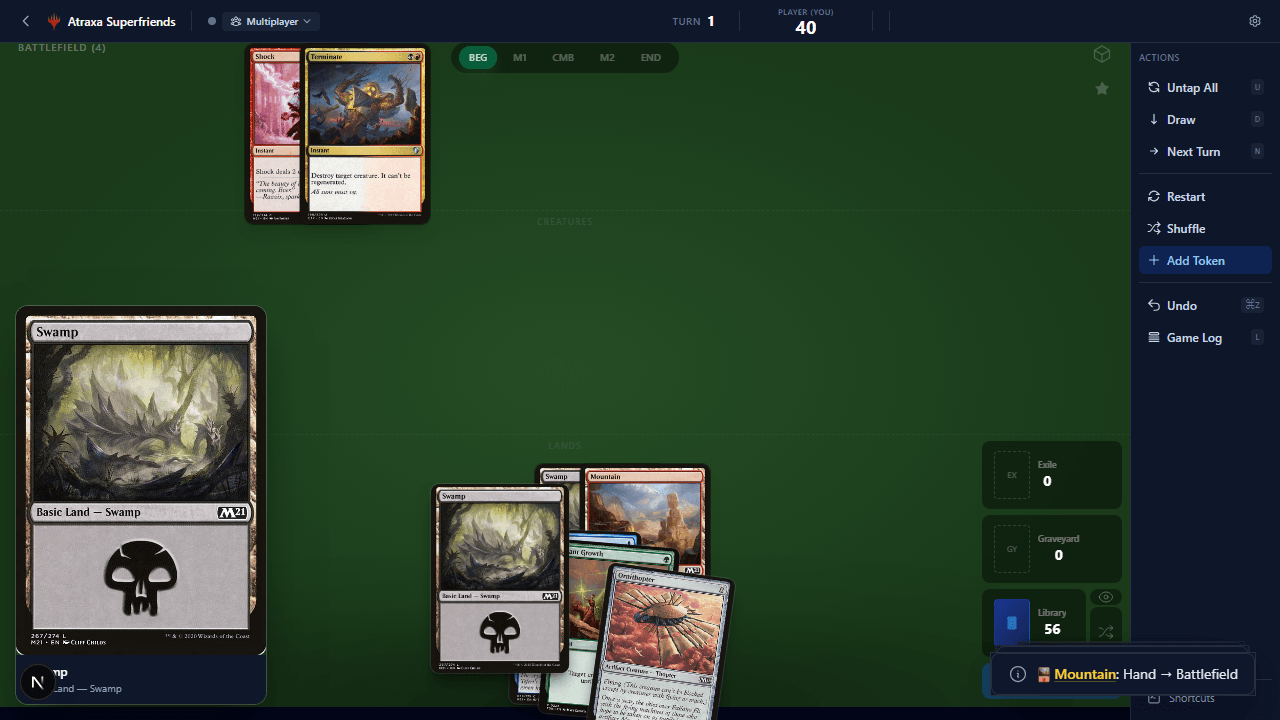
The playtest interface is divided into four main regions: the top bar, the sidebar, the hand, and the battlefield. Each region serves a distinct purpose and is designed to keep the most important information visible at all times.
Top Bar
The top bar displays the current turn number, active phase, life totals, and quick-action buttons (Draw, Untap All, Next Turn, Next Phase). In multiplayer sessions it also shows all connected players and whose turn it is.

Sidebar
The sidebar contains zone stacks (library, graveyard, exile, command zone), the mana pool tracker, designations, and the game log. Click any zone stack to expand and browse its contents. The sidebar collapses in full-screen mode to maximize battlefield space.
Hand
Your hand is displayed as a fan of card images along the bottom of the screen. Hover over a card to enlarge it. Drag a card from your hand to the battlefield to play it, or right-click for additional options (move to graveyard, exile, put on top/bottom of library). In multiplayer, your hand is hidden from opponents by default, though you can toggle hand reveal.

Battlefield
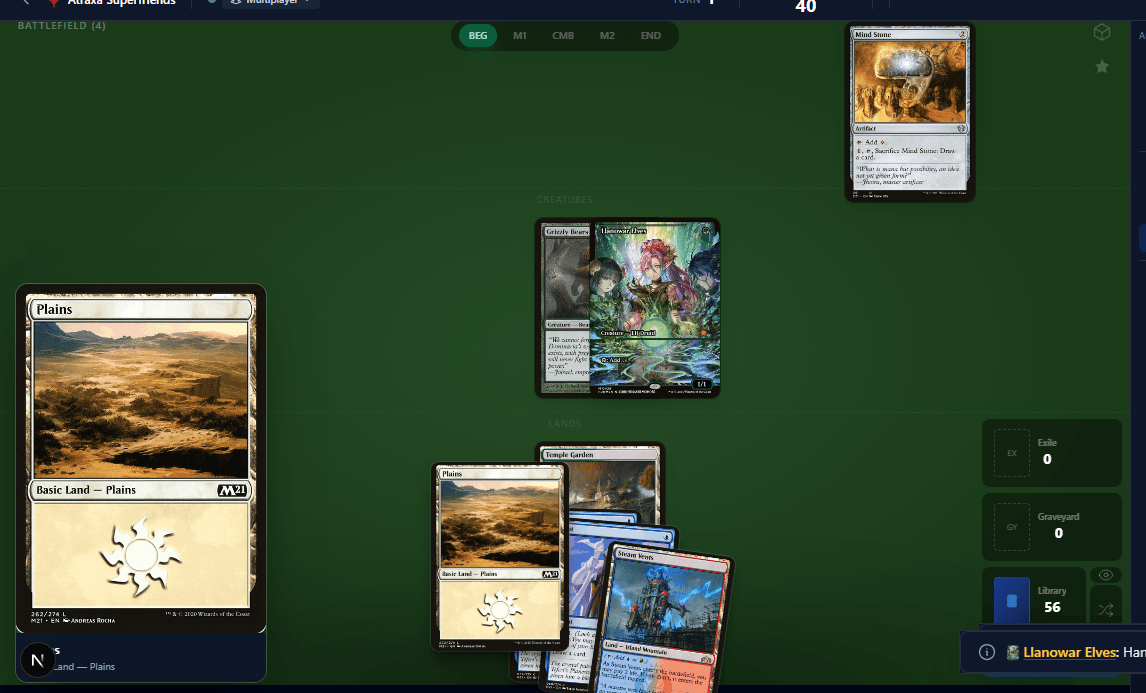
The battlefield is the large central area where permanents live. Cards can be freely dragged to reposition them. In MTG, the battlefield is divided into visual regions for enchantments, artifacts, creatures, and lands. In Pokemon, it has slots for the active Pokemon, bench, and stadium. Tapped cards rotate 90 degrees. Select multiple cards by click-dragging a selection box or holding Ctrl while clicking.
Zones
The playtest engine models every zone defined by each game's rules. The available zones differ between MTG and Pokemon:
Magic: The Gathering Zones
- Library — Your shuffled deck, shown as a face-down stack with a card count. Click to draw, right-click to search, scry, mill, or reveal cards from the top.
- Hand — Cards you have drawn but not yet played. Displayed as a fan along the bottom of the screen. Hidden from opponents in multiplayer.
- Battlefield — Where permanents exist after being cast or put into play. The battlefield is visually divided into four regions:
- Enchantments — Non-aura enchantments across the top
- Artifacts — Artifacts and equipment in the upper-middle
- Creatures — Creatures in the main central area
- Lands — Lands along the bottom row of the battlefield
- Graveyard — Cards that have been destroyed, sacrificed, discarded, or milled. Displayed as a face-up stack. Click to expand and browse all cards.
- Exile — Cards removed from the game. Displayed as a separate face-up stack. Some exiled cards may be face-down depending on the effect that exiled them.
- Command Zone — For Commander format. Your commander starts here and returns here when it would go to the graveyard or exile (unless you choose otherwise). Tracks commander tax automatically.
Pokemon TCG Zones
- Deck — Your shuffled deck of 60 cards, shown as a face-down stack. Click to draw, right-click for search and manipulation.
- Hand — Your drawn cards. Displayed as a fan along the bottom. Hidden from opponents in multiplayer.
- Active — A single slot for your active Pokemon. Only one Pokemon can be in the active position at a time. This is the Pokemon that attacks and is targeted by the opponent's attacks.
- Bench — Up to 5 slots for benched Pokemon. Bench Pokemon can be swapped into the active position via retreat or card effects.
- Discard Pile — Knocked-out Pokemon, used Trainer cards, and discarded Energy. Functions like the MTG graveyard. Click to expand and browse.
- Prizes — 6 face-down prize cards set aside at the start of the game. When you knock out an opponent's Pokemon, take one prize card (or two for EX/GX/V Pokemon). Win the game by taking all 6 prizes.
- Lost Zone — Cards removed from play entirely. Unlike the discard pile, cards in the Lost Zone cannot be retrieved by any game effect. Used by specific card mechanics.
Core Actions
The playtest engine supports keyboard shortcuts for all common actions. These keep gameplay fast and fluid, especially during rapid goldfishing.
| Key | Action | Game |
|---|---|---|
U | Untap All | MTG |
T | Tap / Untap selected permanent | MTG |
D | Draw a card | Both |
N | Next Turn (untap, draw, increment turn counter) | Both |
S | Scry (look at top N cards) | MTG |
M | Open Mana Tracker | MTG |
L | Toggle Game Log | Both |
F | Flip card face down / face up | Both |
B | Board / Table view toggle | Both |
Space | Advance to next phase | Both |
Ctrl+Z | Undo last action | Both |
Ctrl+A | Select all permanents on the battlefield | Both |
G | Group selected cards together | Both |
H | Spread / Fan grouped cards | Both |
| Right-Click | Open context menu with zone-specific actions | Both |
| Double-Click | Play Commander from command zone to battlefield | MTG |
MTG-Specific Features
The following features are available exclusively when playtesting Magic: The Gathering decks. They model MTG-specific game mechanics that do not apply to Pokemon.
Pokemon-Specific Features
The following features are available exclusively when playtesting Pokemon TCG decks. They model Pokemon-specific mechanics and rules.
Token Creation
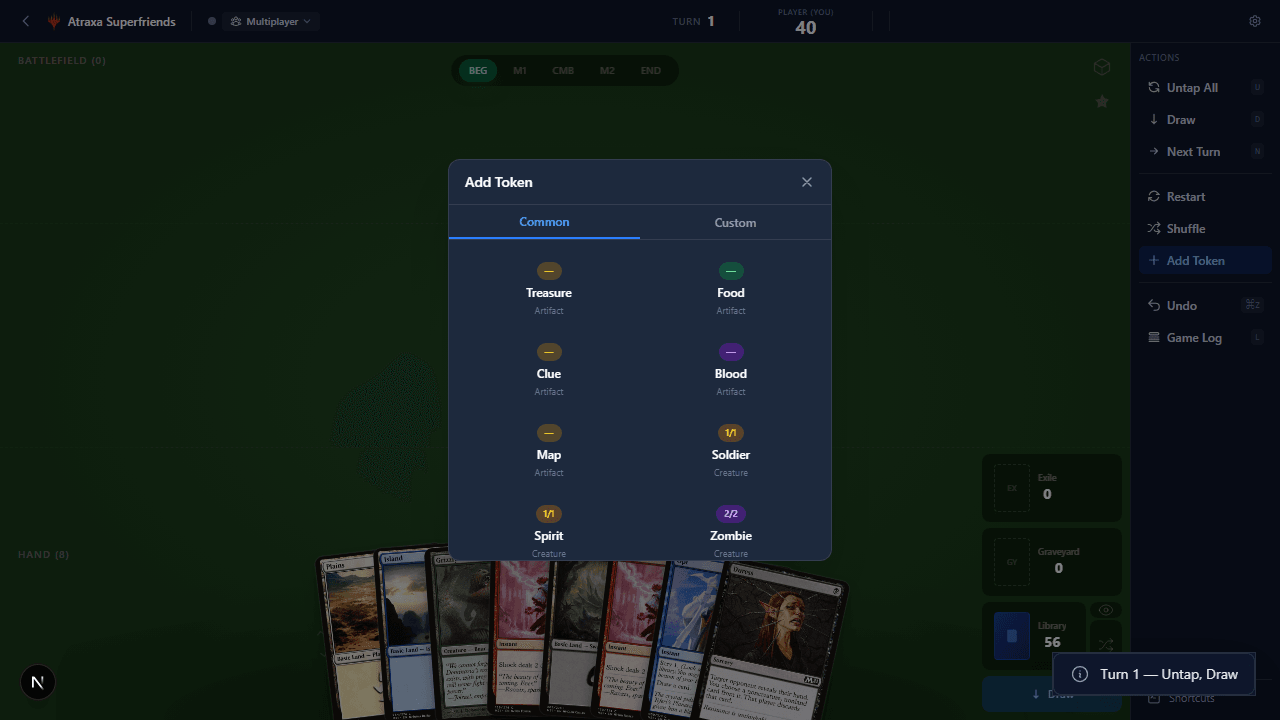
Open the token creation modal by clicking Create Token in the toolbar or using the right-click context menu on the battlefield. The modal has three tabs:
- Deck Tokens — Tokens that your deck is known to produce, automatically detected from card text. These appear at the top for quick access so you do not have to search for your most commonly created tokens.
- Common — A searchable list of frequently used tokens across all of Magic (e.g., 1/1 white Soldier, 2/2 black Zombie, Treasure, Food, Clue). Type to filter by name, color, power, or type.
- Custom — Define a completely custom token by specifying a name, power, toughness, color(s), type line, and optional abilities. Custom tokens are saved to your session for reuse.
Created tokens appear on the battlefield and behave like regular permanents — they can be tapped, untapped, moved between zones, given counters, and used in combat.
Card Operations
Every card on the tabletop supports a rich set of operations via drag and drop, keyboard shortcuts, and the right-click context menu.
| Action | How |
|---|---|
| Play from hand | Drag a card from your hand to the battlefield |
| Move between zones | Right-click the card, then select the destination zone from the context menu |
| Clone | Right-click → Clone to create a copy of the card on the battlefield |
| Transform (DFC) | Right-click → Transform to flip a double-faced card to its other side |
| Add Counter | Right-click → Add Counter — choose +1/+1, -1/-1, or loyalty counters |
| Custom Label | Right-click → Set Label — type any text (supports mana symbols like {W}, {U}, {B}) |
| Exile Under | Right-click → Exile Under, then click the target card to tuck this card beneath it |
Multiplayer
Real-Time Multiplayer
Creating and Joining Rooms
To start a multiplayer session, click Multiplayer in the playtest toolbar, then Create Room. A unique room code and shareable link are generated. Send the link to your opponents. When they open it, they are prompted to select a deck and join the room. The host controls when the game starts.
Turn Order and Seat Colors
Each player is assigned a seat color (blue, red, green, yellow, purple, orange) for visual identification. Turn order is determined by the host or by a random roll. The active player is highlighted in the player bar, and only the active player can advance phases and turns. Other players can still perform actions on their board (like tapping mana or activating abilities) during any player's turn.
Visibility Rules
By default, each player's hand is hidden from all other players. The battlefield, graveyard, exile, and command zone are visible to everyone. Face-down cards (morph, manifest) are hidden from opponents. The library card count is visible, but its contents are not.
Hand Reveal Toggle
Click the eye icon next to your hand to toggle hand reveal. When enabled, all opponents can see every card in your hand. This is useful for teaching games, casual play, or debugging. You can toggle it on and off at any time during the game.
Board Locking
The host can lock the board to prevent accidental card movements during critical game moments (like resolving a complex stack). When the board is locked, no player can move cards until the host unlocks it. A lock icon appears in the top bar to indicate the locked state.
Real-Time Sync
Every game action is broadcast to all players via WebSocket in real time. Card movements, life total changes, counter adjustments, zone transfers, and phase changes are all synchronized instantly. A brief animation plays on each player's screen when another player performs an action, so the game state is always crystal clear.
Game Controls
Checkpoints
The engine automatically saves a checkpoint at the end of each turn, up to a maximum of 10 checkpoints. You can also manually save a checkpoint at any time from the toolbar. To restore a previous game state, open the checkpoint menu and select the turn you want to revert to. This is invaluable for exploring alternative lines of play — save before a critical decision, play it out, then restore and try a different line.
Undo
Press Ctrl+Z to undo the last action. The undo stack holds up to 50 moves, so you can rewind through a significant portion of the game. Undo works for all actions: card movements, life total changes, counter adjustments, zone transfers, and more. In multiplayer, undo only affects your own actions.
Restart Options
The restart menu (accessible from the toolbar) offers three options:
- Just Me — Restart only your own board state. Your deck is reshuffled and a new opening hand is drawn. Other players are unaffected.
- All — Restart the entire game for all players. Every player's board is reset and new opening hands are drawn.
- Roll for Start — Randomly determine who goes first, then restart. This is the standard way to start a new game in multiplayer.
Phase Advancement
Press Space to advance to the next phase within the current turn. The phase indicator in the top bar updates to show the current phase. MTG phases follow the standard order: Untap, Upkeep, Draw, Main 1, Beginning of Combat, Declare Attackers, Declare Blockers, Combat Damage, End of Combat, Main 2, End Step, Cleanup. Press N to skip directly to the next turn, which automatically untaps all permanents and draws a card.
Differences: MTG vs Pokemon
The playtest engine adapts its rules, zones, and available actions based on the game type of the deck being tested. Here is a summary of the key differences:
| Feature | Magic: The Gathering | Pokemon TCG |
|---|---|---|
| Starting Life / HP | 20 life (40 in Commander) | N/A — individual Pokemon have HP |
| Deck Size | 60 (Standard/Modern) or 100 (Commander) | 60 |
| Opening Hand | 7 cards | 7 cards (must have a Basic Pokemon) |
| Mulligan | London mulligan (draw 7, put N back) | Redraw (shuffle back if no Basic, draw 7) |
| Battlefield Layout | Free-form with regions (lands, creatures, etc.) | Active slot + 5 bench slots |
| Resource System | Lands and mana pool | Energy attachment |
| Combat | 6-step system with blockers | Active attacks active, damage counters |
| Win Condition | Reduce opponent to 0 life (or alt wins) | Take all 6 prizes, deck out opponent, or KO all Pokemon |
| Discard / Graveyard | Graveyard + Exile | Discard Pile + Lost Zone |
| Status Effects | N/A (handled by card abilities) | Poisoned, Burned, Asleep, Confused, Paralyzed |
| Evolution | N/A | Stage 1 and Stage 2 evolution stacks |
| Special Zones | Command Zone (Commander format) | Prize cards, Lost Zone |
Next Steps