
Folders & Labels
As your deck collection grows, keeping everything organized becomes essential. MTG Rack provides a folder system for hierarchical organization and a label system for flexible tagging. Combine folders and labels with sorting, filtering, and the deck trash to manage dozens or hundreds of decks without losing track of anything.
Folder Tree
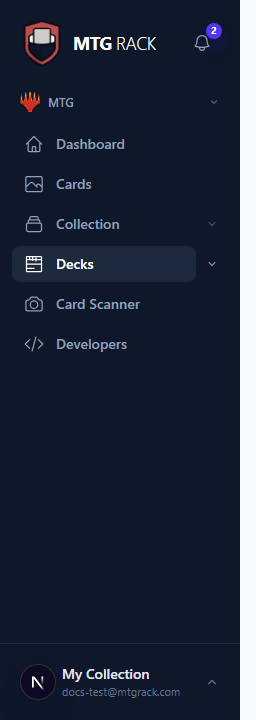
The folder tree appears in the sidebar under the Decks section. It works like a file system — you can create folders, nest them inside each other, and move decks between folders by dragging. Click a folder to view the decks inside it. The folder tree persists across sessions and syncs across all your devices.
Creating Folders
Right-click anywhere in the folder tree and select New Folder, or click the folder icon with the plus sign at the top of the tree. Enter a name for the folder and press Enter. The new folder appears in the tree and you can immediately start dragging decks into it. Common folder structures include organizing by format (Standard, Modern, Commander), by status (Active, Retired, In Progress), or by playgroup.
Moving Decks Between Folders
Drag a deck from one folder to another in the sidebar tree. You can also right-click a deck and select Move to Folder to choose a destination from a dropdown. Moving a deck between folders has no effect on the deck itself — it is purely organizational.
Reordering Folders
Drag folders up or down in the tree to reorder them. The order is saved per-account and reflected everywhere the folder tree appears, including the sidebar navigation and the deck list page. You can also reorder decks within a folder by dragging them.
Nested Folder Support
Folders can be nested to any depth. Drag a folder onto another folder to make it a subfolder. For example, you might create a top-level "Commander" folder with subfolders for each color combination ("Azorius," "Golgari," "Temur," etc.), or a "Tournament" folder with subfolders for each event. The sidebar tree shows expand/collapse arrows for folders that contain subfolders.
Renaming and Deleting Folders
Right-click a folder to rename or delete it. When you rename a folder, all decks inside it remain in place — only the folder label changes. When you delete a folder, the decks inside it are not deleted. They move up to the parent folder, or to the root level if the deleted folder had no parent. This prevents accidental deck loss. To delete both a folder and its contents, you need to delete the decks individually first.
Folder-Based Navigation
Clicking a folder in the sidebar filters the deck list to show only decks in that folder (and its subfolders). The breadcrumb bar at the top of the deck list shows your current location in the folder hierarchy, and you can click any breadcrumb segment to navigate up. This navigation model makes it easy to drill into a specific category and then back out to the full list.
Labels and Tags
Labels provide a second layer of organization that works independently of folders. A deck can have multiple labels, and you can filter the deck list by one or more labels. Labels are color-coded for visual identification. Common label schemes include:
- Status labels — "Competitive," "Casual," "Jank," "Needs Tuning"
- Power level — "cEDH," "High," "Mid," "Low"
- Archetype — "Aggro," "Midrange," "Control," "Combo," "Stax"
- Ownership status — "Built in Paper," "MTGO," "Theorycraft Only"
- Playgroup — "Friday Night Magic," "Home Group," "Arena"
Applying Labels
Open a deck's settings and click the Labels section to see all available labels. Click a label to toggle it on or off. You can also apply labels in bulk from the deck list: select multiple decks using the checkboxes, then use the bulk action menu to add or remove labels from all selected decks at once.
Creating and Managing Labels
To create a new label, open the label manager from the deck list toolbar or from the deck settings panel. Enter a name and choose a color. You can edit or delete labels at any time — renaming a label updates it on all decks that use it, and deleting a label removes it from all decks without affecting the decks themselves.
Filtering by Labels
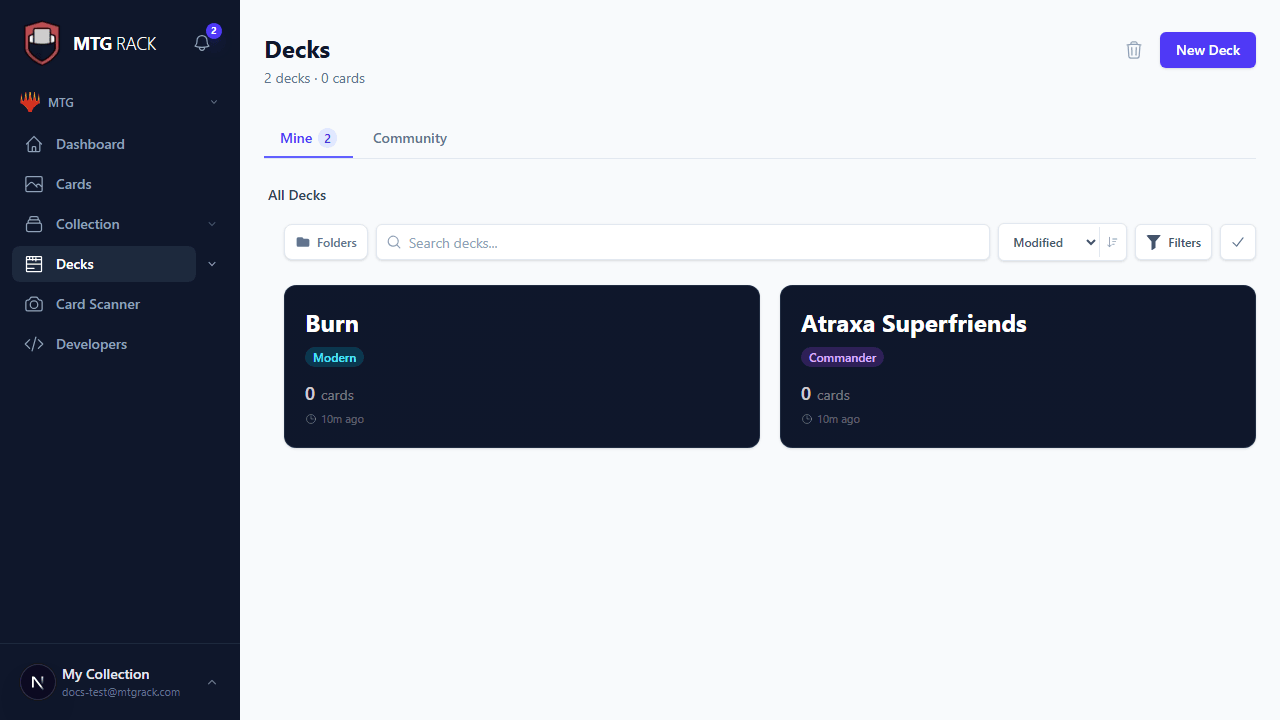
The deck list toolbar includes a label filter dropdown. Select one or more labels to show only decks that match. You can combine label filters with folder navigation — for example, show only decks in the "Commander" folder that have the "Competitive" label. Label filters and folder navigation work together, not against each other.
Deck Sorting and Filtering
The deck list page provides additional sorting and filtering options beyond folders and labels:
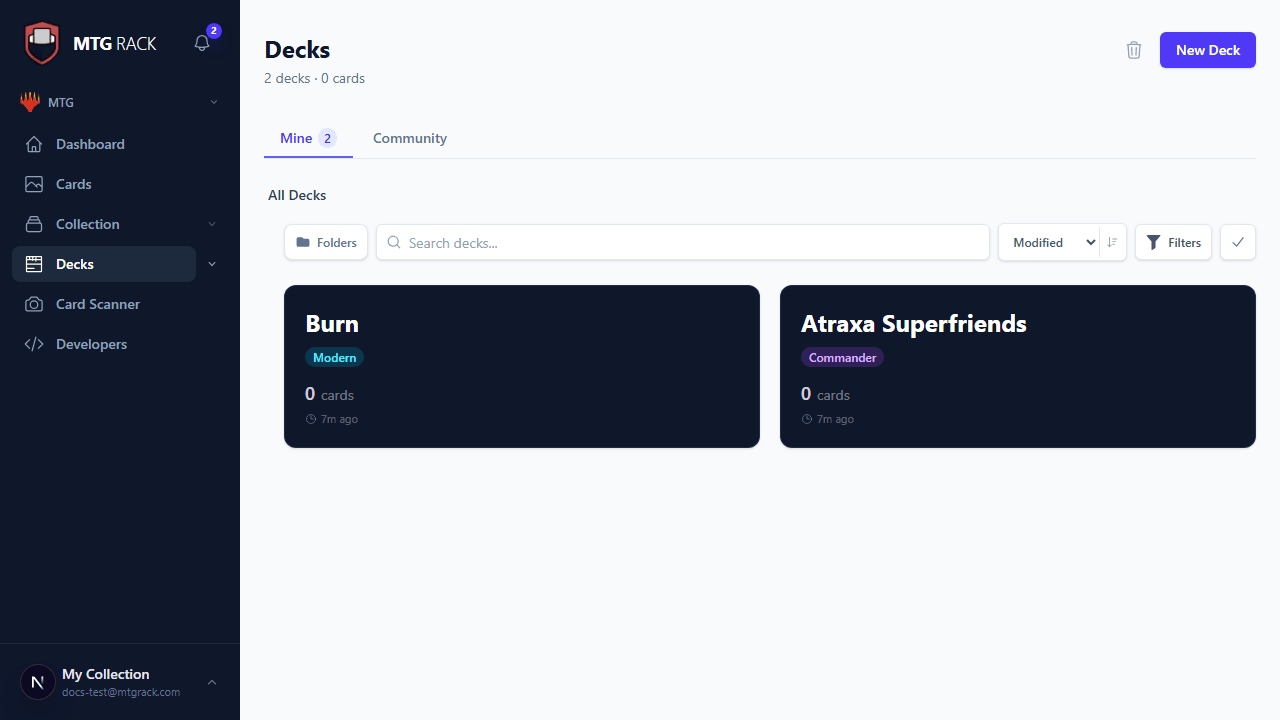
- Sort by name — alphabetical ordering (A-Z or Z-A)
- Sort by date modified — most recently edited first (default)
- Sort by date created — newest or oldest first
- Sort by format — group decks by their format
- Sort by price — total estimated deck value, highest or lowest first
- Sort by card count — number of cards in the mainboard
- Filter by format — show only Standard, Modern, Commander, etc.
- Filter by game — show only MTG or Pokemon decks
- Search by name — type a deck name to filter the list instantly
Borrow Ledger
The borrow ledger tracks cards you have lent to or borrowed from other players. When you lend a card from one of your decks, record it in the ledger so you know which cards are out on loan, who has them, and when they were borrowed. The ledger integrates with the deck readiness panel — cards that are currently lent out are flagged so you know your deck may not be fully playable until they are returned.
To add a borrow entry, right-click a card in any deck and select Lend Card. Enter the borrower's name and an optional due date. The card entry shows a "lent" badge, and the borrow ledger page lists all active loans across all your decks. Mark a loan as returned when the card comes back, and the badge clears automatically.
Borrow Ledger Privacy
Deck Trash
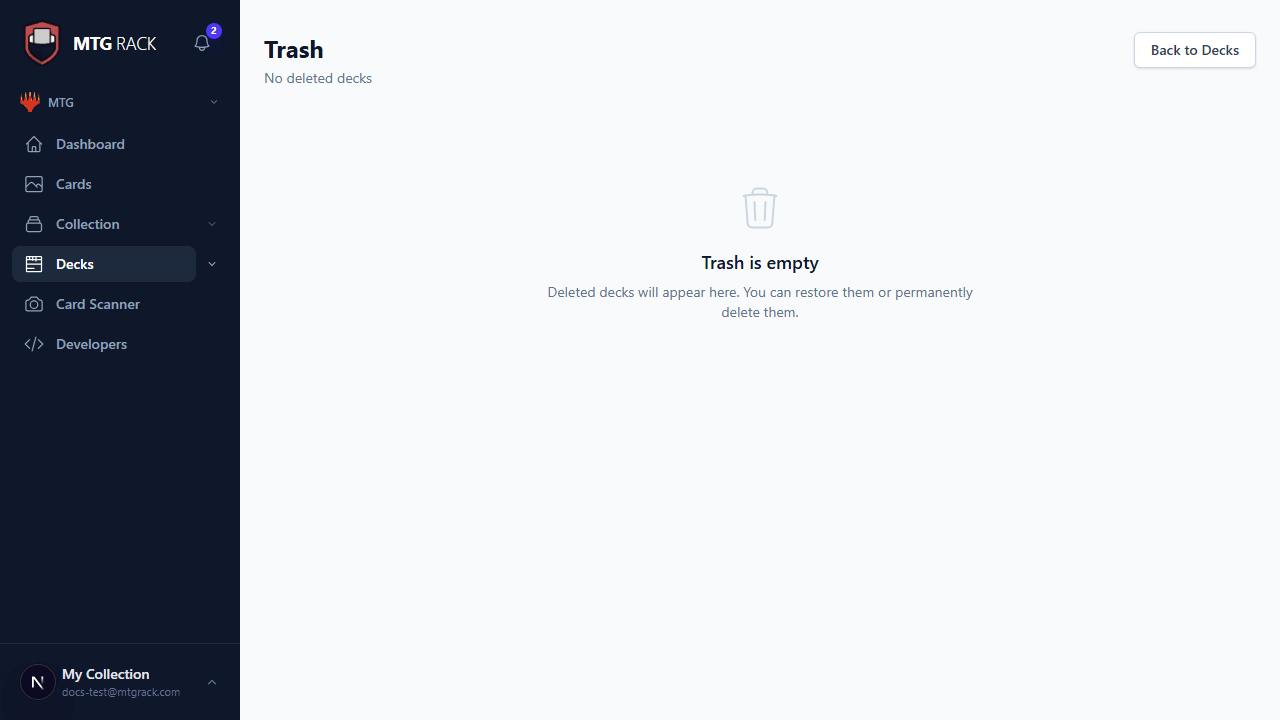
When you delete a deck, it is not permanently removed. Instead, it moves to the Trash, where it stays for 30 days before automatic permanent deletion. During this period, you can:
- View the deleted deck's contents in read-only mode
- Restore the deck to its original folder and state
- Permanently delete the deck to free up space immediately
Access the Trash from the deck list page by clicking the trash icon in the toolbar, or from the sidebar under the Decks section. The Trash shows the deck name, deletion date, format, and card count for each trashed deck.
Permanent Deletion
Next Steps