
Notifications
MTG Rack keeps you informed about activity that matters to you through a real-time notification system. Whether someone comments on your deck, invites you to collaborate, starts following you, or likes your build, you will know about it instantly. The inbox page at /inbox is your central hub for managing all notifications, with filters, bulk actions, and granular preference controls.
Inbox Overview
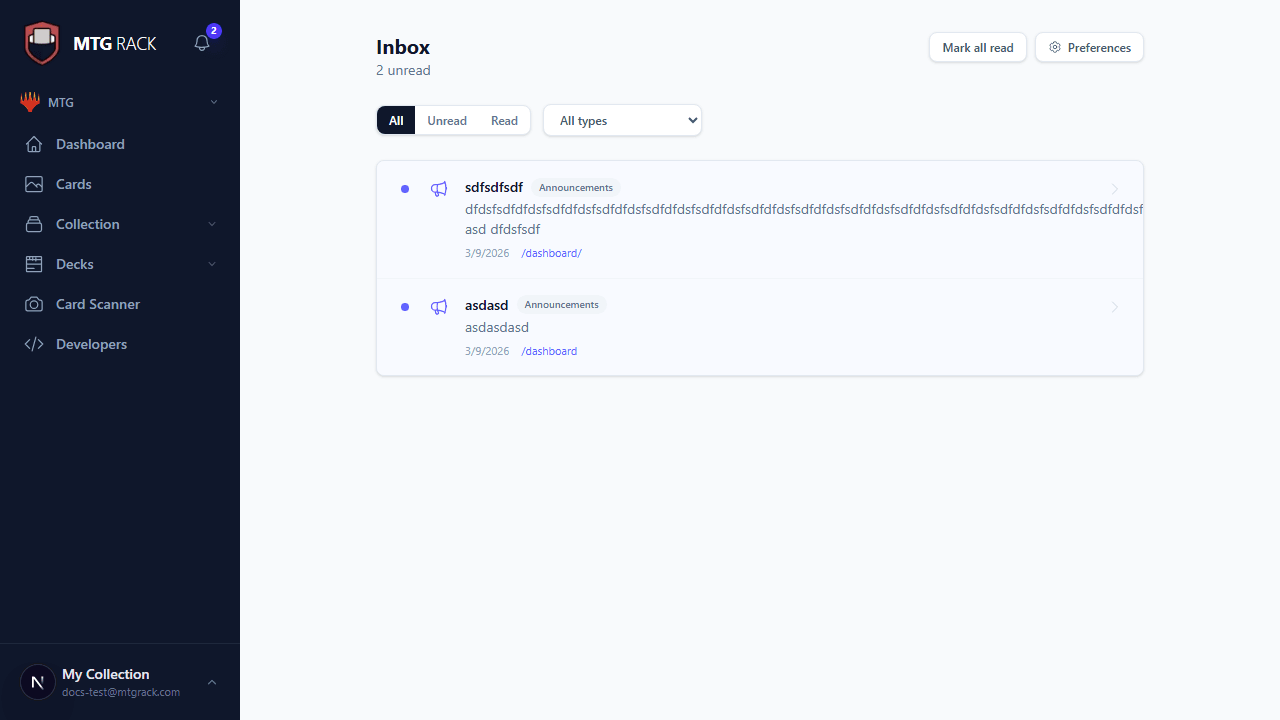
The inbox page displays your notifications in a chronological list with the most recent at the top. Each notification entry shows:
- Type badge — a colored badge indicating the notification category (comment, like, follow, invite, or system). Badges use distinct colors so you can scan the list and identify notification types at a glance.
- Message content — a brief description of what happened, such as "Alice commented on your deck Mono-Red Aggro" or "Bob started following you." For comments and collaboration invites, a preview of the message text is included.
- Timestamp — when the notification was generated, displayed as a relative time (e.g., "2 hours ago") for recent items and an absolute date for older ones.
- Read/unread status — unread notifications have a bold title and a colored dot indicator. Read notifications appear in a muted style so you can easily distinguish between new and previously seen items.
Notification Types
MTG Rack generates notifications for the following events:
| Type | Description |
|---|---|
| Collaboration invites | When another user invites you to collaborate on a deck. You can accept or decline the invitation directly from the notification. |
| Comments | When someone comments on one of your published decks or replies to your comment on another deck. Clicking the notification takes you directly to the comment in context. |
| Followers | When a user starts following you. The notification includes a link to their public profile so you can check out their content and follow back if you wish. |
| Likes | When someone likes one of your published decks. Like notifications are batched — if multiple users like the same deck within a short period, they are combined into a single notification. |
| System messages | Platform announcements, account alerts, maintenance notifications, and feature updates from the MTG Rack team. These are relatively infrequent and reserved for important communications. |
Mark as Read
You can manage read status in two ways:
- Individual — click on any notification to mark it as read and navigate to the relevant content (the deck, comment, user profile, etc.). You can also click the dot icon next to a notification to mark it as read without navigating away from the inbox.
- Mark all as read — click the Mark All Read button at the top of the inbox to mark every notification as read in one action. This is useful after catching up on a backlog of notifications.
Filters
The inbox supports several filter options to help you find specific notifications in a busy inbox:
Shows every notification, both read and unread. This is the default view.
Shows only notifications you have not yet read. The fastest way to catch up on new activity.
Shows only previously read notifications. Useful for finding a notification you read earlier and want to revisit.
Filter by notification type (comments, likes, follows, invites, system). Select a specific type to see only those notifications, making it easy to focus on one category at a time.
Notification Count Badge
Pagination
The inbox displays 30 notifications per page. Use the pagination controls at the bottom to navigate through older notifications. The active filter is maintained across pages, so if you are viewing "Unread only," pagination shows only unread items across all pages.
Notification Preferences
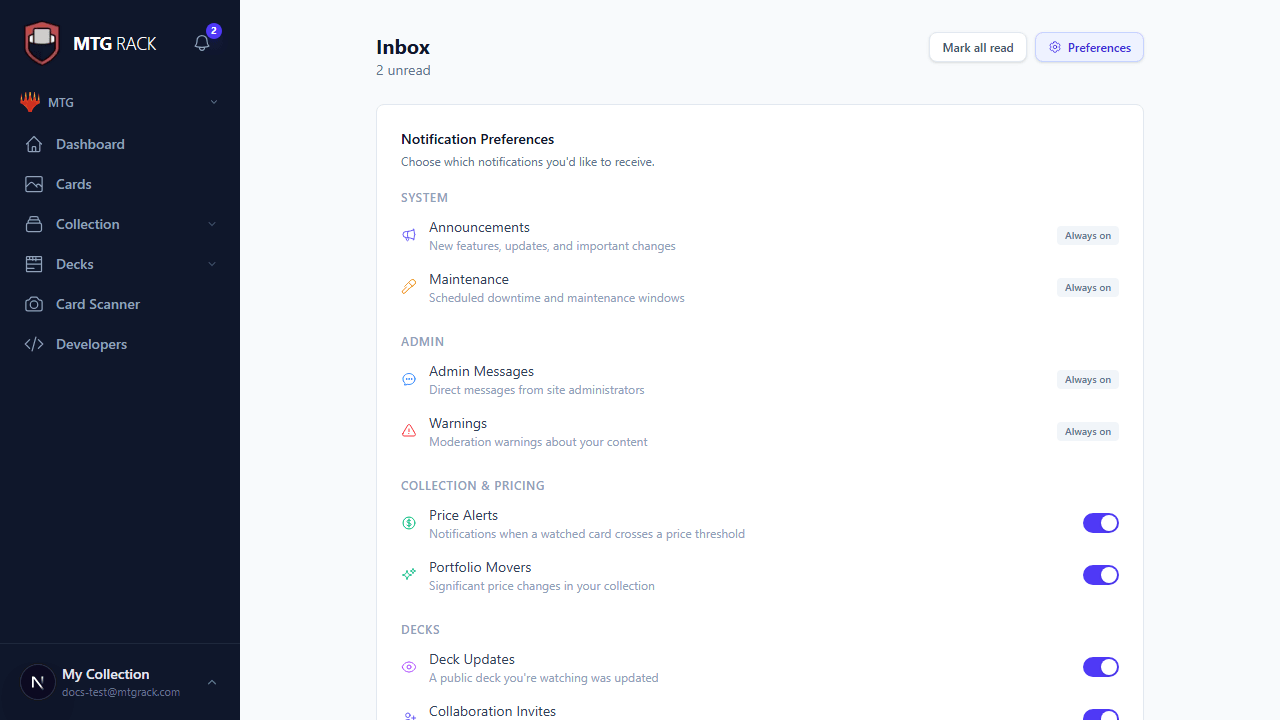
Control exactly which notifications you receive and how they are delivered. Open your notification preferences from the inbox page or from Settings → Notifications. Preferences are organized by category:
- Comments — toggle notifications for comments on your decks, replies to your comments, and mentions of your username.
- Likes — toggle notifications when users like your decks. If you publish popular decks and find like notifications overwhelming, you can disable them here.
- Followers — toggle notifications when users start following you.
- Collaboration — toggle notifications for deck collaboration invites and updates to collaborative decks.
- System — platform announcements and account alerts. System notifications cannot be fully disabled for critical security and account alerts, but non-essential announcements can be turned off.
Email Toggles
Each notification category has a separate email toggle. By default, in-app notifications are enabled for all categories, and email notifications are enabled for comments, collaboration invites, and system messages. You can enable or disable email delivery for each category independently. For example, you might want in-app notifications for likes but not email notifications, while wanting both in-app and email notifications for collaboration invites.
Email Delivery
Real-Time Notification Delivery
Notifications are delivered in real time using Supabase's real-time subscription system. When an event triggers a notification, it appears in your inbox and updates the header badge instantly without requiring a page refresh. This means you can keep the app open while building a deck and see comments, likes, and other activity as it happens. Real-time delivery works across all open tabs and devices logged into your account.