
Collection View Modes
MTG Rack offers five distinct view modes so you can browse your collection in whatever way suits the task at hand — from dense spreadsheet-style tables for bulk inventory work to rich visual grids for admiring your card art. Switch freely between views without losing your place; your preference is saved automatically and persists across sessions.
Switching Views
The view toggle lives in the collection toolbar, just above your cards. Click any of the five icons to switch instantly. Your selected view mode is saved to your account, so it will be the same the next time you open your collection — even from a different device. Filters, sort order, and grouping settings are independent of the view mode, so switching views never resets your current query.
View Modes
The most compact view available. Text List displays cards as simple text rows with no images, making it ideal for scanning large collections quickly or working on a low-bandwidth connection. Despite its minimal appearance, Text List fully supports grouping and sorting, so you can organize your cards by type, color, rarity, or any other field and navigate groups efficiently.
Text List is particularly useful when you want to focus on card names and metadata without visual distractions. Each row shows the card name along with any extra data toggles you have enabled (mana cost, price, set icon, deck usage).
Condensed view is a compact list layout designed to fit the maximum number of cards on screen at once. It shows more information per row than Text List — including set abbreviation, quantity, and condition — while still keeping rows tight enough that you can see dozens of cards without scrolling. This view is perfect for quick inventory checks, building printed checklists, and rapidly scanning for specific cards.
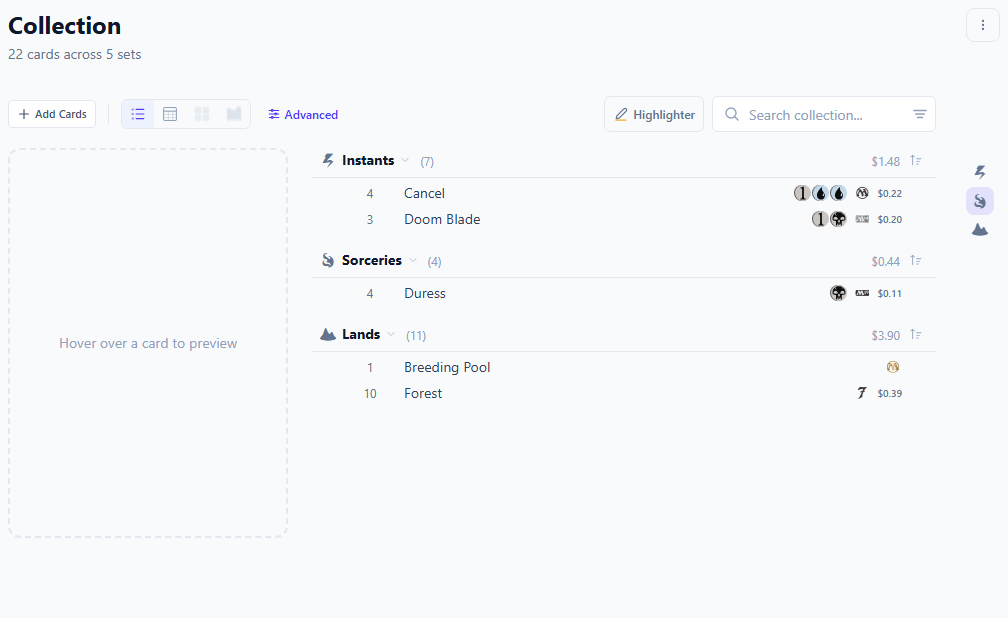
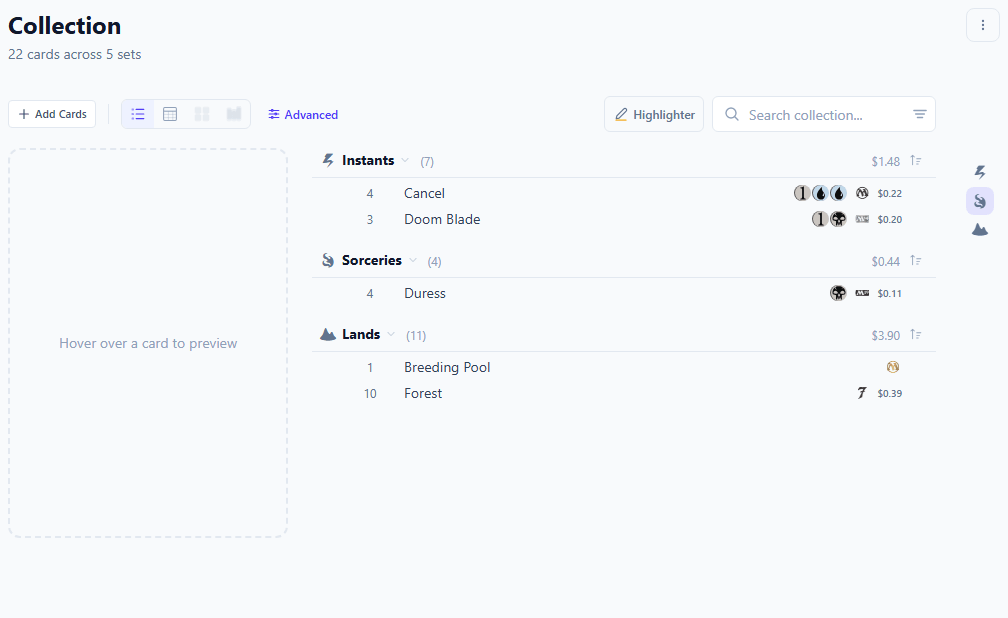
Table view presents your collection as a full spreadsheet-style grid with sortable columns. This is the most data-rich view and the best choice when you need to sort, compare, or audit your cards. Available columns include:
- Name — the card name, with a small thumbnail on hover.
- Set — the expansion or product the card is from, shown with the set icon and collector number.
- Price — current TCGplayer market price, updated daily.
- Quantity — how many copies of this exact printing you own.
- Condition — the condition grade you assigned (NM, LP, MP, HP, DMG).
- Date Added — when the card was first added to your collection.
Click any column header to sort ascending; click again to sort descending. The active sort column is highlighted so you always know what ordering is applied. Table view also supports inline editing — click a quantity or condition cell to update it directly without opening the card detail panel.
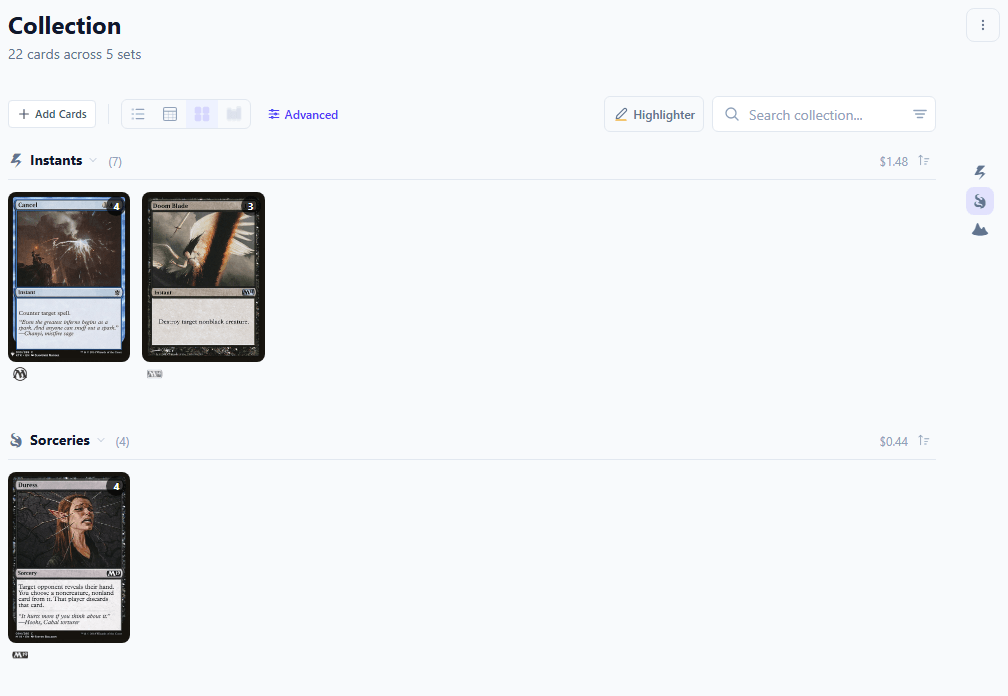
Visual Grid displays full card images in a responsive, masonry-style grid that adapts to your screen size. Images are lazy-loaded as you scroll, so even collections with thousands of cards remain fast and smooth. Grid view is the best way to visually browse your collection, spot specific art or printings, and appreciate the cards you own.
Hovering over a card in grid view shows a quick-info overlay with the card name, set, and price. Clicking a card opens the full detail panel where you can edit quantity, condition, and other metadata. You can adjust the grid density using the size slider in the toolbar to show larger or smaller card images.
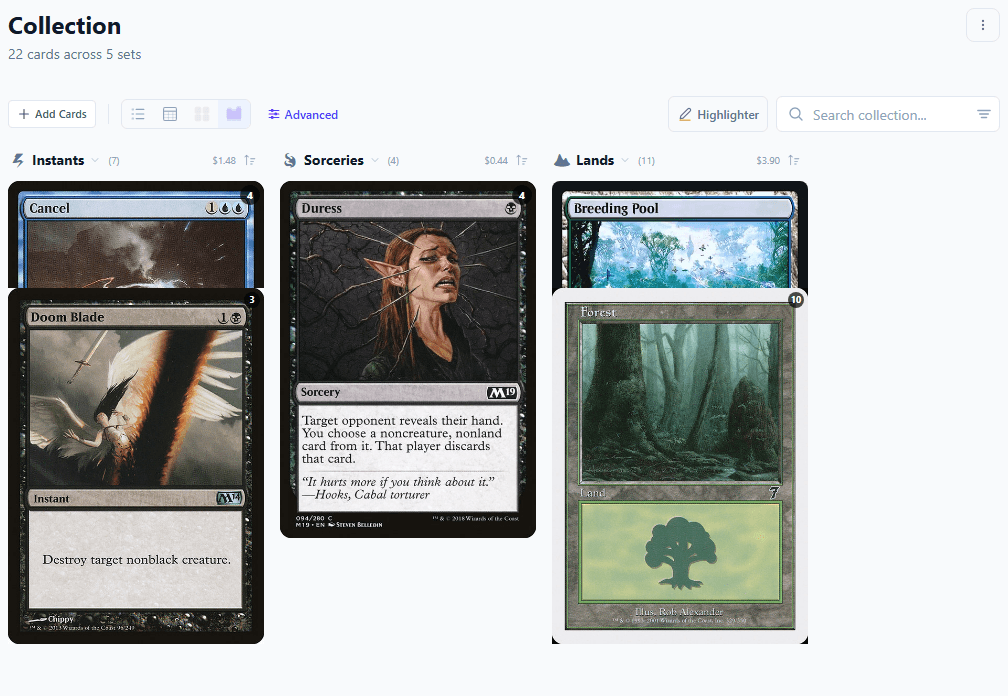
Visual Stacks groups your cards into cascading stacks organized by a field of your choice. Each stack fans out its cards vertically so you can see the top edge of every card in the group. This view is excellent for understanding the composition and distribution of your collection at a glance — instantly see how many creatures vs. instants you own, or how your collection breaks down by color or rarity.
You can choose which field to stack by using the grouping dropdown in the toolbar. Clicking a stack expands it to show all cards in that group. Clicking an individual card opens the detail panel as usual.
Grouping Options
All view modes support grouping, which organizes your cards into labeled sections based on a shared attribute. Use the grouping dropdown in the toolbar to choose from the following options:
| Option | Description |
|---|---|
| Type | Groups by card type (Creature, Instant, Sorcery, Artifact, Enchantment, Planeswalker, Land, Battle). |
| Rarity | Groups by rarity tier (Mythic Rare, Rare, Uncommon, Common, Special). |
| Color | Groups by the card's casting cost colors (White, Blue, Black, Red, Green, Multicolor, Colorless). |
| Color Identity | Groups by the card's full color identity, which includes colors in rules text (relevant for Commander deck building). |
| Mana Value | Groups by converted mana cost (0, 1, 2, 3, 4, 5, 6, 7+). |
| Set | Groups by the expansion or product the card was printed in. |
| None | Disables grouping and shows all cards in a single flat list. |
When grouping is active, each group header shows the group name and the number of cards it contains. You can collapse or expand individual groups to focus on what matters. The group jump bar lets you quickly navigate between groups without scrolling.
Extra Data Toggles
The toolbar includes toggles that control what additional information appears on each card entry across all view modes. These let you customize the information density to match your current task:
| Toggle | What It Shows |
|---|---|
| Mana Cost | Displays the card's mana cost using colored mana symbols next to the card name. |
| Price | Shows the current TCGplayer market price inline on each card entry. |
| Set Icon | Displays the set symbol and collector number alongside the card name. |
| Deck Usage | Shows which of your decks include this card, so you can see at a glance where each card is being used. |
Tip: Match the View to the Task
Related
- Collection Overview — adding cards, tracking metadata, and price tracking
- Search & Filters — narrowing down what you see in any view mode
- Tags & Sections — organizing cards with custom tags and sections
- Analytics & Pricing — portfolio trends and historical price charts