
Tags & Sections
Tags and sections give you flexible, user-defined ways to organize your collection beyond the built-in grouping and filtering options. Use tags to label cards with custom metadata and sections to create persistent visual groups within your collection — together, they let you build an organizational system that matches how you actually think about your cards.
Tags
Tags are labels you attach to individual cards in your collection. They work across all view modes and can be used as filters, making them a powerful organizational tool. MTG Rack supports two categories of tags:
Create your own tags to organize cards in whatever way makes sense for your collection. Common examples include:
- Trade Bait — cards you are willing to trade
- Reserved List — cards on the MTG Reserved List
- Upgrade Target — cards you want to upgrade to a better printing
- Sell Queue — cards you plan to sell
- Signed — cards with artist signatures
Creating Custom Tags
To create a new tag, open the tag manager panel from the toolbar. Click "New Tag," give it a name, and optionally choose a color. Tags are created at the collection level and are available across all your binders and views. Tag names must be unique within your collection.
Applying Tags to Cards
There are several ways to apply tags to cards:
- Card detail panel — open any card and use the tags section to add or remove tags from that specific card.
- Right-click context menu — right-click a card in any view mode and select "Add Tag" from the context menu.
- Bulk tag operations — select multiple cards (using checkboxes in Table view or Ctrl/Cmd+click in other views), then use the bulk actions bar to apply or remove a tag from all selected cards at once.
Tag Filtering
Once cards are tagged, you can filter your collection to show only cards with a specific tag. The tag filter is available in the advanced filter panel alongside color, type, and other filters. You can combine tag filters with any other filter — for example, show all "Trade Bait" cards worth more than $10.
Tag Manager Panel
The tag manager panel provides an overview of all your tags with card counts for each one. From here you can rename tags, change their colors, or delete tags you no longer need. Deleting a tag removes it from all cards that had it applied — the cards themselves are not affected.
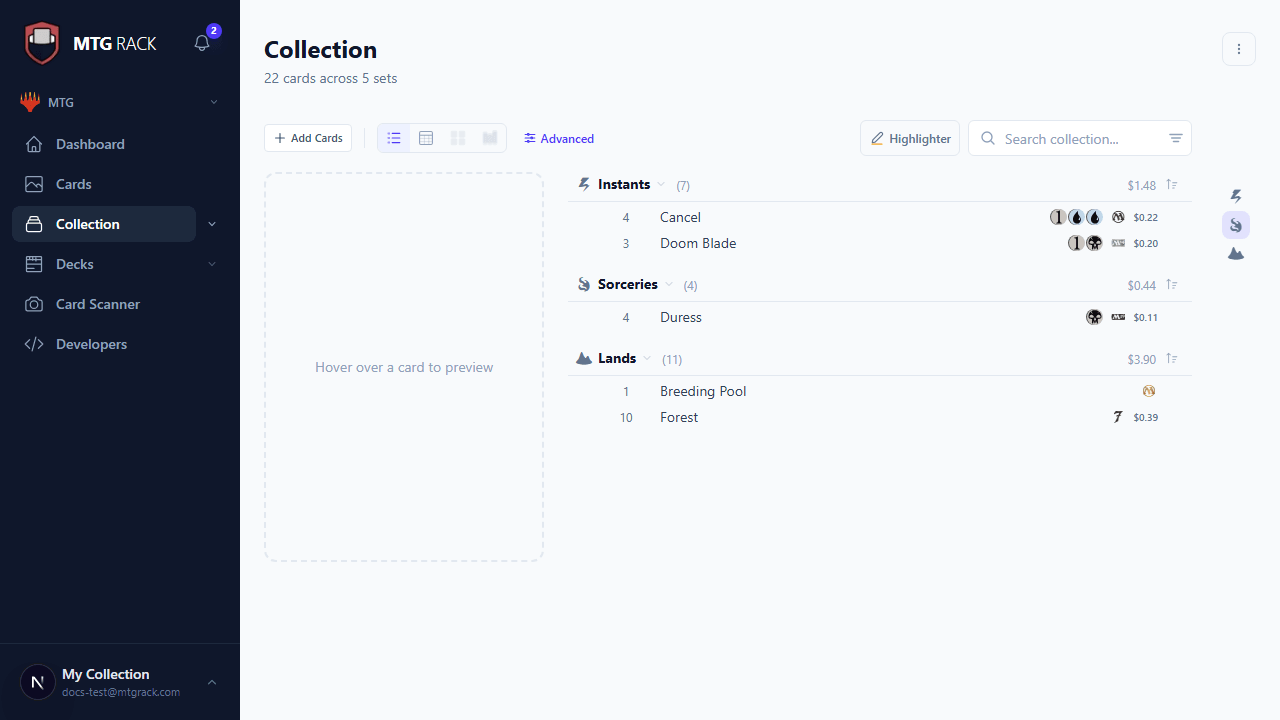
Select multiple cards (using checkboxes in Table view or Ctrl/Cmd+click in other views) to perform bulk tag operations via the bulk actions bar:
- Apply tag to selection — add a tag to all selected cards at once. Choose an existing tag or create a new one on the fly.
- Remove tag from selection — remove a specific tag from all selected cards.
- Replace tag — swap one tag for another across all selected cards in a single operation.
Bulk operations are recorded in the activity log as a single batch entry that can be expanded to see every card affected, and undone as a whole if needed.
Sections
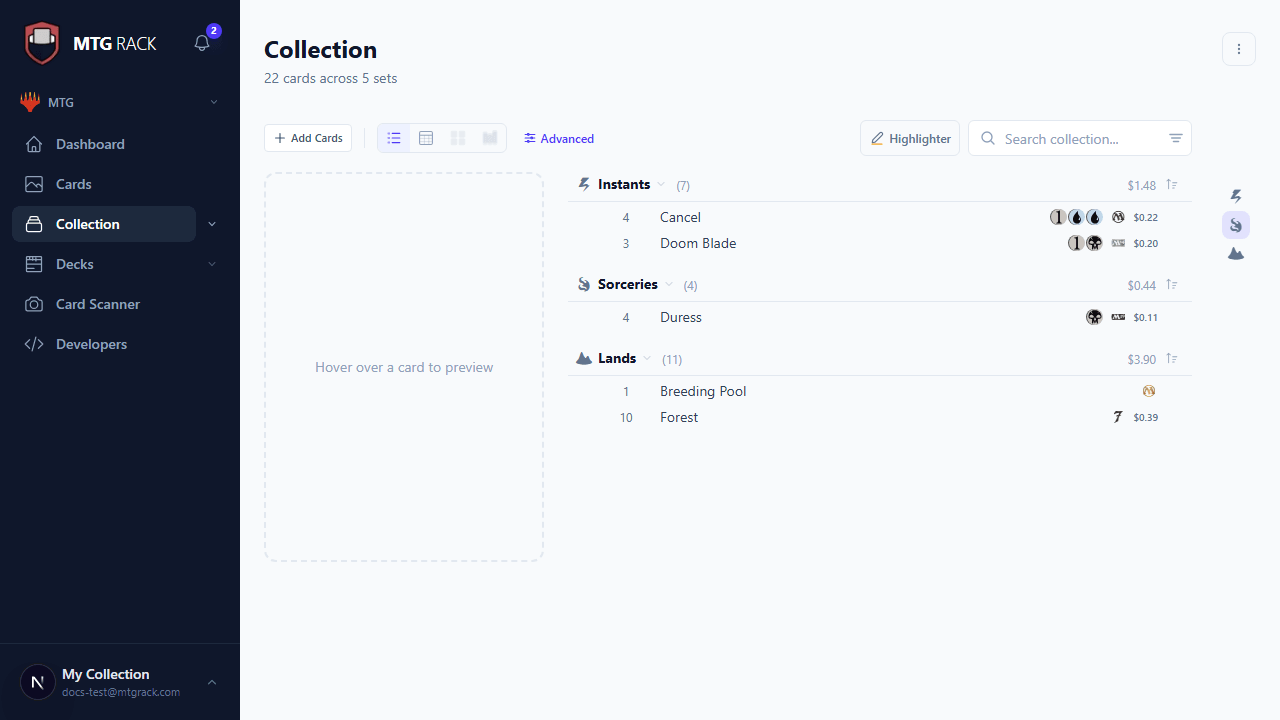
Sections are persistent, user-defined groups within your collection. Unlike grouping (which dynamically organizes cards by a field like type or color), sections are manually curated — you decide which cards go in which section. Sections appear as labeled dividers in your collection view, creating a custom layout that persists across sessions.
Creating Sections
Open the section manager from the toolbar and click "New Section." Give the section a name — for example, "Commander Staples," "Trade Stock," or "Cards to Grade." New sections appear at the bottom of your collection by default, but you can reorder them at any time.
Renaming & Deleting Sections
To rename a section, open the section manager and click the edit icon next to the section name. To delete a section, click the delete icon. When you delete a section, the cards in it are moved to the default "Unsorted" section — they are not removed from your collection.
Reordering Sections
Drag and drop sections in the section manager to change their display order. The order you set is reflected in all view modes. This lets you put your most important or frequently accessed sections at the top.
Section Colors & Icons
Each section can have a custom color and icon to make it visually distinct. Choose from a palette of colors and a library of icons in the section manager. Color-coded sections make it easy to scan your collection and locate specific groups at a glance, especially in Visual Grid and Stacks views.
Moving Cards Between Sections
Move cards between sections using drag-and-drop in any view mode. Simply drag a card (or a selection of cards) and drop it onto the target section header. You can also move cards via the right-click context menu by selecting "Move to Section" and choosing the destination.
Auto-Populate Sections
The auto-populate feature automatically assigns cards to sections based on rules you define. For example, you can set up a rule that automatically places all cards worth over $50 into a "High Value" section, or all Creature cards into a "Creatures" section. Auto-populate rules run whenever new cards are added to your collection, keeping your sections organized without manual effort.
Sections vs. Binders
Manage Sections Modal
The manage sections modal provides a centralized interface for all section operations. From here you can create new sections, rename existing ones, assign colors and icons, reorder sections via drag-and-drop, configure auto-populate rules, and delete sections you no longer need. Access it from the toolbar by clicking the sections icon.
Context Menu
Right-clicking any card in your collection opens a context menu with quick actions. The context menu provides fast access to common operations without needing to open the card detail panel:
| Action | Description |
|---|---|
| Add Tag | Apply one or more tags to the card. |
| Remove Tag | Remove a tag from the card. |
| Move to Section | Move the card to a different section. |
| Move to Binder | Assign the card to a different binder. |
| Edit Quantity | Quickly change the number of copies. |
| Edit Condition | Update the condition grade. |
| View on Scryfall | Open the card's Scryfall page in a new tab. |
| View Price History | Jump to the card's price chart. |
| Remove from Collection | Delete the card entry entirely (with confirmation). |
Group Jump Bar
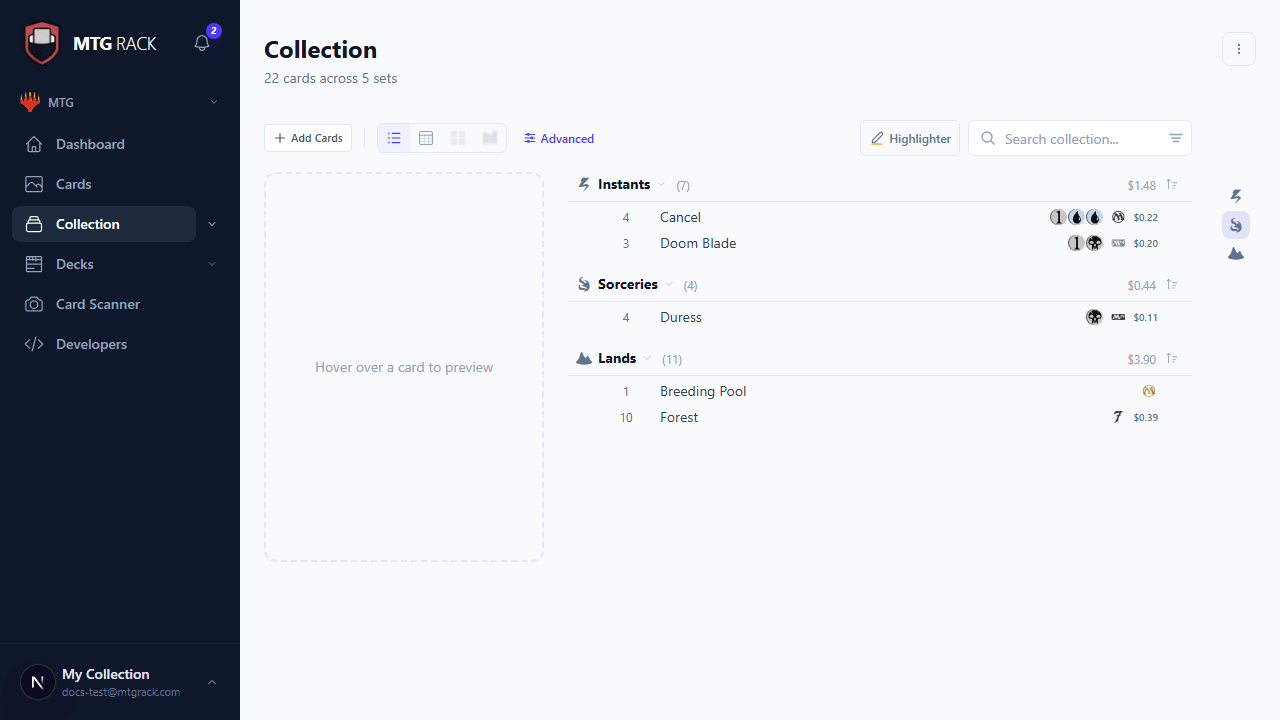
When grouping is active (whether by type, color, rarity, section, or any other field), the group jump bar appears as a compact navigation strip along the edge of the collection view. Each group is represented as a clickable label in the bar. Clicking a label instantly scrolls the view to that group, saving you from manually scrolling through large collections to find a specific category.
The jump bar highlights the currently visible group as you scroll, so you always know where you are in the list. It is especially useful in Visual Stacks view, where groups can be large, and in Table view when browsing collections with thousands of cards. The jump bar works with both built-in grouping options and custom sections.
Tip: Combine Tags and Sections
Related
- Collection Overview — adding cards and managing your collection
- View Modes — choosing how your cards are displayed
- Search & Filters — finding specific cards using filters and search
- Organizing with Binders — creating shareable subsets of your collection
- History & Activity — tracking changes including tag and section modifications