
History & Activity
Every change you make to your collection is recorded in the activity log. Whether you added a booster box worth of cards, changed a condition grade, or moved cards between binders, MTG Rack keeps a detailed timeline so you can review past actions, spot patterns in your collecting habits, and undo mistakes with confidence.
Activity Log
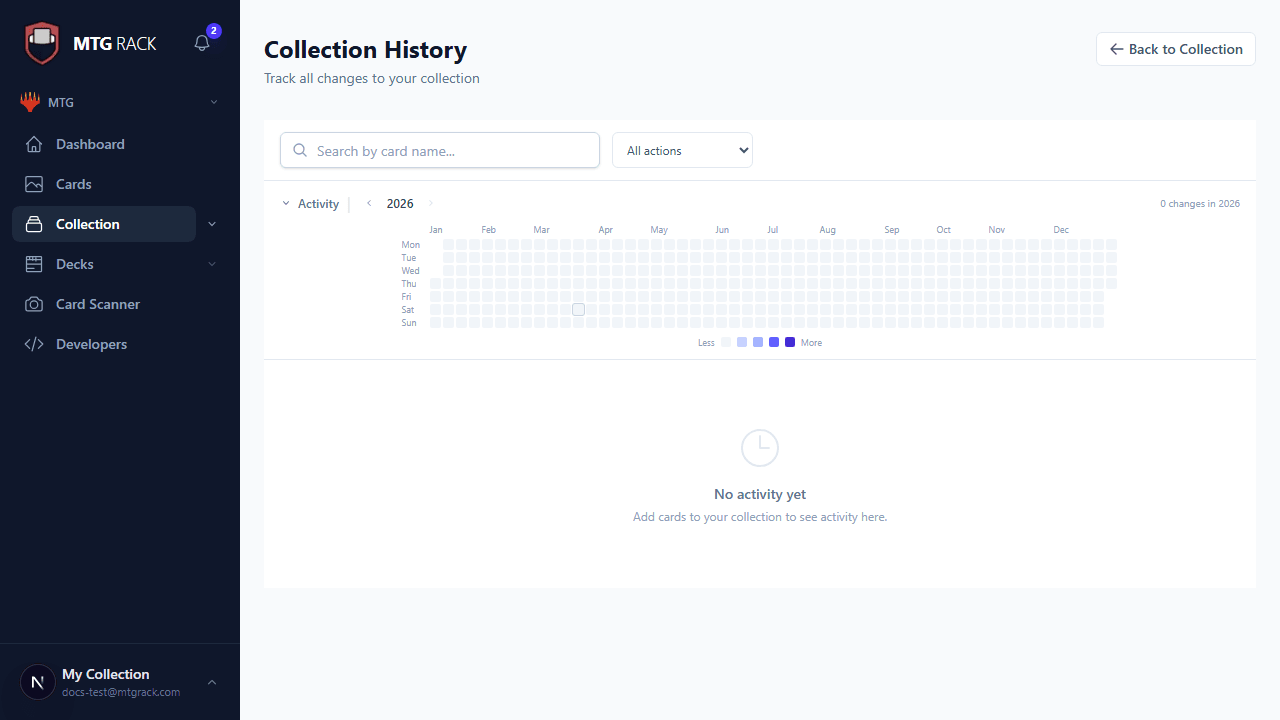
The activity log is a chronological feed of every change made to your collection. Each entry shows the action type, the card(s) affected, a timestamp, and any relevant details (such as the old and new values for a quantity or condition change). The log is accessible from the collection page via the History tab.
Entries are grouped by day for easy scanning. Within each day, the most recent actions appear at the top. Bulk operations (such as importing 50 cards at once) appear as a single log entry that can be expanded to see every card involved.
Action Types Tracked
The following action types are recorded in your activity log:
| Action | Description |
|---|---|
| Add | A new card was added to your collection, either manually, via search, scanner, or import. |
| Remove | A card was removed from your collection entirely. |
| Quantity Change | The quantity of an existing entry was increased or decreased. The log shows both the old and new quantity. |
| Condition Change | A card's condition grade was updated (e.g., NM to LP). The log shows both the old and new condition. |
| Binder Move | A card was moved from one binder to another, or assigned to a binder for the first time. The log shows the source and destination binder names. |
| Transfer In/Out | A card was transferred between profiles or accounts. This tracks cross-profile movements for households or shared collections. |
Searching History
Use the search bar within the history view to find log entries by card name. This is useful when you want to see the full history of a specific card — when it was added, how many times the quantity changed, and whether it has been moved between binders or profiles.
Filtering by Action Type
The action type filter lets you narrow the log to show only specific kinds of changes. For example, you can view only additions to see what you have been acquiring recently, or only removals to review what you have sold or traded away. Select one or more action types to filter simultaneously.
Filtering by Profile
If you manage multiple profiles (such as separate collections for different family members), you can filter the activity log by profile. Choose a specific profile to see only their changes, or select "All" to see a merged timeline across all profiles. The active profile filter defaults to your currently selected profile.
Date-Based Filtering
Narrow the activity log to a specific time period using the date filter. Two modes are available:
- Single day — select a specific date to see only changes made on that day. Useful for reviewing what you added after a store visit or prerelease event.
- Month — select a month to see all changes within that month. Useful for monthly collection reviews or spending audits.
Date filters combine with action type and profile filters, so you can construct queries like "all cards added by Profile A during January 2026."
Activity Heatmap Calendar
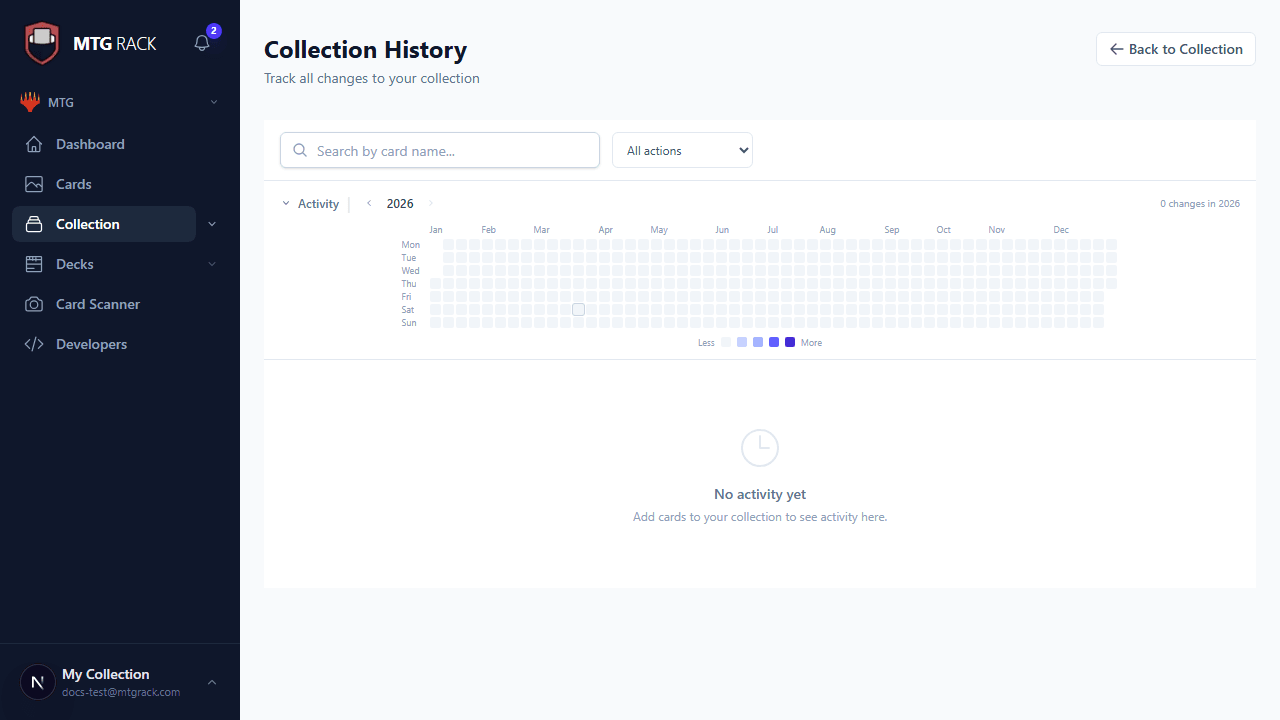
The heatmap calendar provides a visual overview of your collection activity across an entire year. Each day is represented as a colored cell — the more changes you made on a given day, the more intense the color. This makes it easy to spot your busiest collecting days, identify patterns (such as regular purchases on weekends), and see periods of inactivity.
Click any day on the heatmap to jump directly to that day's activity log entries. Use the year selector to switch between years and review your historical collecting patterns.
Year Selection
The year selector above the heatmap lets you switch between years to review activity from any period. This is useful for comparing collecting habits year over year, or for finding when a particular card was first added to your collection. The current year is selected by default, with previous years available in the dropdown.
Undo Functionality
Every action in the activity log can be undone. Click the undo button on any log entry to reverse that specific change — the card will be restored to its previous state. For additions, undoing removes the card. For removals, undoing re-adds it. For quantity or condition changes, undoing reverts to the previous value.
Batch operations can also be undone as a whole. If you imported 50 cards and want to reverse the entire import, click undo on the batch entry and all 50 additions will be reversed at once. You can also expand the batch and undo individual cards within it.
Undo Window Depends on Your Plan
- Free — 7 days of history
- Rare — 90 days of history
- Mythic / Unlimited — unlimited history
Tier-Based History Limits
History retention varies by subscription tier. On the Free plan, only the last 7 days of activity are retained — older entries are automatically purged. The Rare plan extends this to 90 days, giving you a full quarter of history for reviews and audits. Mythic and Unlimited plans provide unlimited history retention, meaning every change you ever made is preserved indefinitely.
| Tier | Retention Period |
|---|---|
| Free | 7 days |
| Rare | 90 days |
| Mythic / Unlimited | Unlimited (preserved indefinitely) |
If you upgrade your plan, previously purged history cannot be recovered. To avoid losing important history, consider upgrading before your retention window expires. The heatmap calendar will show gaps where purged history once existed.
Tip: Review Before Selling
Related
- Collection Overview — adding cards and managing your collection
- Search & Filters — finding specific cards in your collection
- Import & Export — bulk operations that generate history entries
- Billing & Plans — subscription tiers and history retention limits
- Analytics & Pricing — tracking collection value over time