
Search & Filters
With collections that can grow into the tens of thousands of cards, finding exactly what you need is critical. MTG Rack provides full-text search with autocomplete, a rich set of combinable filters, and flexible sorting to help you locate any card in seconds — no matter how large your collection gets.
Full-Text Card Search
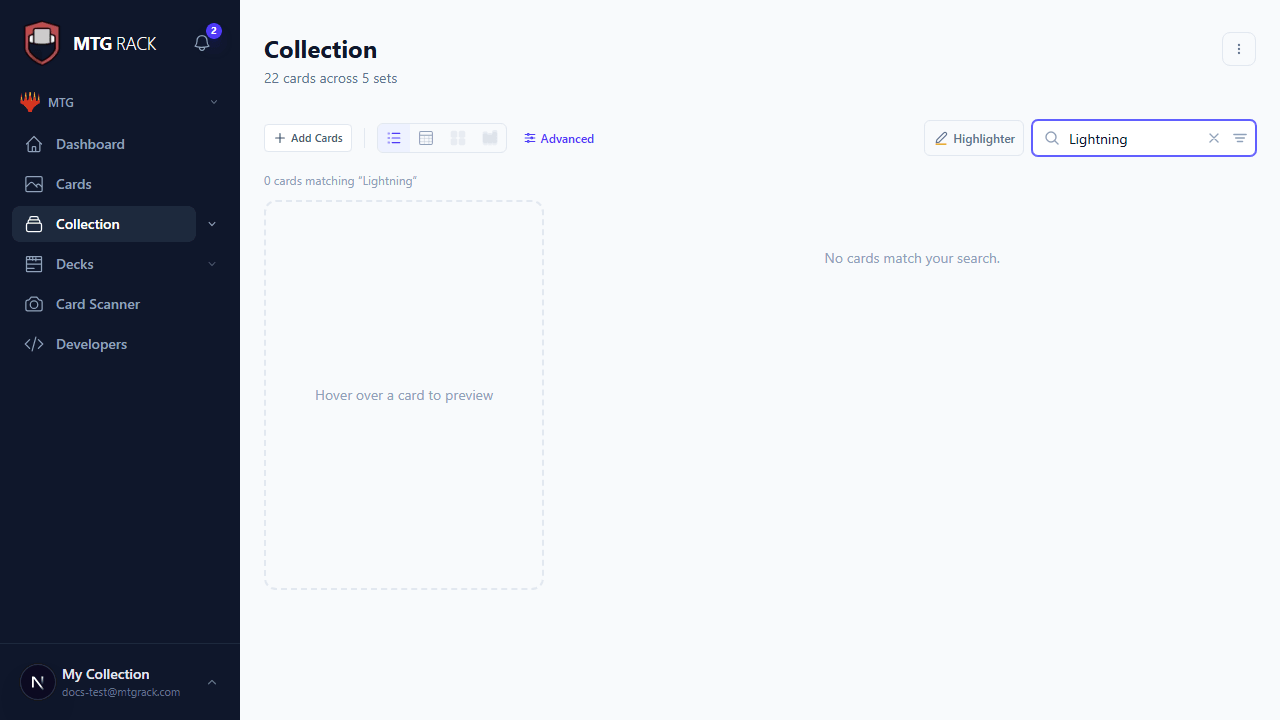
The search bar at the top of the collection page lets you search by card name. As you type, an autocomplete dropdown appears showing matching cards from your collection in real time. Results are ranked by relevance, with exact name matches appearing first, followed by partial matches. Search is case-insensitive and tolerant of minor typos.
Matching text is highlighted in the results so you can quickly confirm you have found the right card. Press Enter to apply the search as a filter, or click a result to jump directly to that card. To clear the search, click the X button in the search bar or delete the text.
Search Query Highlighting
When you apply a search query, matching text is highlighted across all view modes — in card names in Table and Condensed views, and as a subtle glow around matching cards in Grid and Stacks views. This makes it easy to spot your target cards even when many results are returned.
Advanced Filter Panel
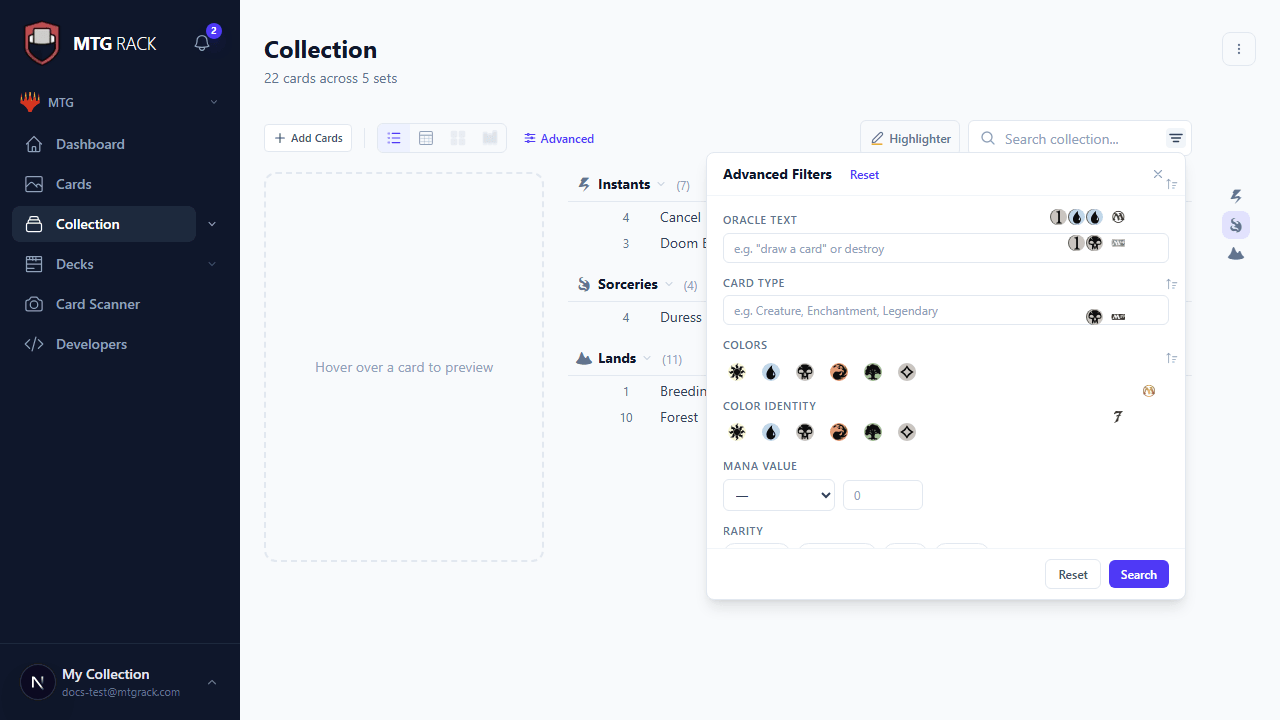
Click the filter icon in the toolbar to open the advanced filter panel. This gives you access to the full range of filters that can be combined freely to narrow your collection down to exactly the cards you need. Available filters include:
Active Filter Chips
Every active filter appears as a chip below the toolbar. Each chip shows the filter type and its current value — for example, Color: Red, Green or Price: > $5.00. Click the X on any chip to remove that individual filter instantly. A "Clear All" button appears when multiple filters are active, letting you reset everything with one click.

Combining Multiple Filters
All filters work together using AND logic — the more filters you apply, the narrower your results become. This makes it easy to construct precise queries. Some example combinations:
- Red creatures from MH3 worth more than $5 — set Color to Red, Type to Creature, Set to Modern Horizons 3, and Price minimum to $5.
- All mythic rares in NM condition — set Rarity to Mythic Rare and Condition to Near Mint.
- Foil lands under $2 — set Type to Land, Foil to Foil, and Price maximum to $2.
- Commander-legal artifacts with mana value 3 or less — set Format to Commander, Type to Artifact, and Mana Value max to 3.
Sorting
Control the order cards are displayed using the sort dropdown in the toolbar. Sorting works across all view modes and is independent of grouping and filtering. Available sort fields:
- Name — alphabetical A-Z or Z-A.
- Mana Value — by converted mana cost, ascending or descending.
- Price — by current market price, high to low or low to high.
- Rarity — ordered from Mythic Rare down to Common, or reversed.
- Date Added — most recently added first, or oldest first.
In Table view, you can also click any column header to sort by that column directly. Click once for ascending, again for descending, and a third time to remove the sort.
Search Syntax Shortcuts
For power users, the search bar supports a few shortcut prefixes that let you filter without opening the advanced panel:
| Prefix | Example | Description |
|---|---|---|
t: | t:creature | Filter by type. Shows only creatures. |
c: | c:rug | Filter by color. Shows cards that include Red, Blue, or Green. |
r: | r:mythic | Filter by rarity. Shows only mythic rares. |
s: | s:mh3 | Filter by set code. Shows only Modern Horizons 3 cards. |
mv: | mv:3 or mv>=5 | Filter by mana value. Shows cards with the specified mana value, or use range queries. |
Shortcuts can be combined with plain text search. For example, t:instant c:u counterspell searches for blue instants with "counterspell" in the name.
Filters Persist Across Views
Related
- Collection Overview — adding cards and tracking metadata
- View Modes — choosing the right view for your task
- Tags & Sections — organizing cards with custom labels and groups
- History & Activity — tracking changes over time